How to integrate Truelist with BigCommerce
Truelist has a direct integration with BigCommerce that validates customer email addresses in your store and writes the results back automatically — no CSV downloads needed. This guide walks you through setup and how to use the results.
How the integration works
When you connect BigCommerce, Truelist fetches all customers from your store and validates each email address through its full validation pipeline. Once validation is complete, Truelist updates each customer in two ways:
Truelist Validation Status attribute — A custom attribute is added to each customer record with one of the following values:
- valid — The email address is valid and safe to send to.
- risky — The email address may be valid but carries some risk (e.g. a disposable or role address).
- invalid — The email address is invalid and should not be sent to.
- unknown — Truelist could not determine the validity of the email address.
Customer group assignment — Each customer is moved into a Truelist customer group that matches their validation result: Truelist: Valid, Truelist: Invalid, Truelist: Risky, or Truelist: Unknown. These groups are created automatically in your BigCommerce store the first time a sync runs.
Important: Truelist will overwrite any existing customer group assignment on every sync. If your store uses customer groups for other purposes (e.g. VIP tiers, wholesale pricing), those assignments will be replaced by the Truelist group after each sync.
Step 1: Find BigCommerce in Truelist integrations
- In your Truelist account, go to Settings → Integrations.
- Find the BigCommerce card and click Set up.

You will land on the setup page where you need to enter your Store Hash and Access Token.
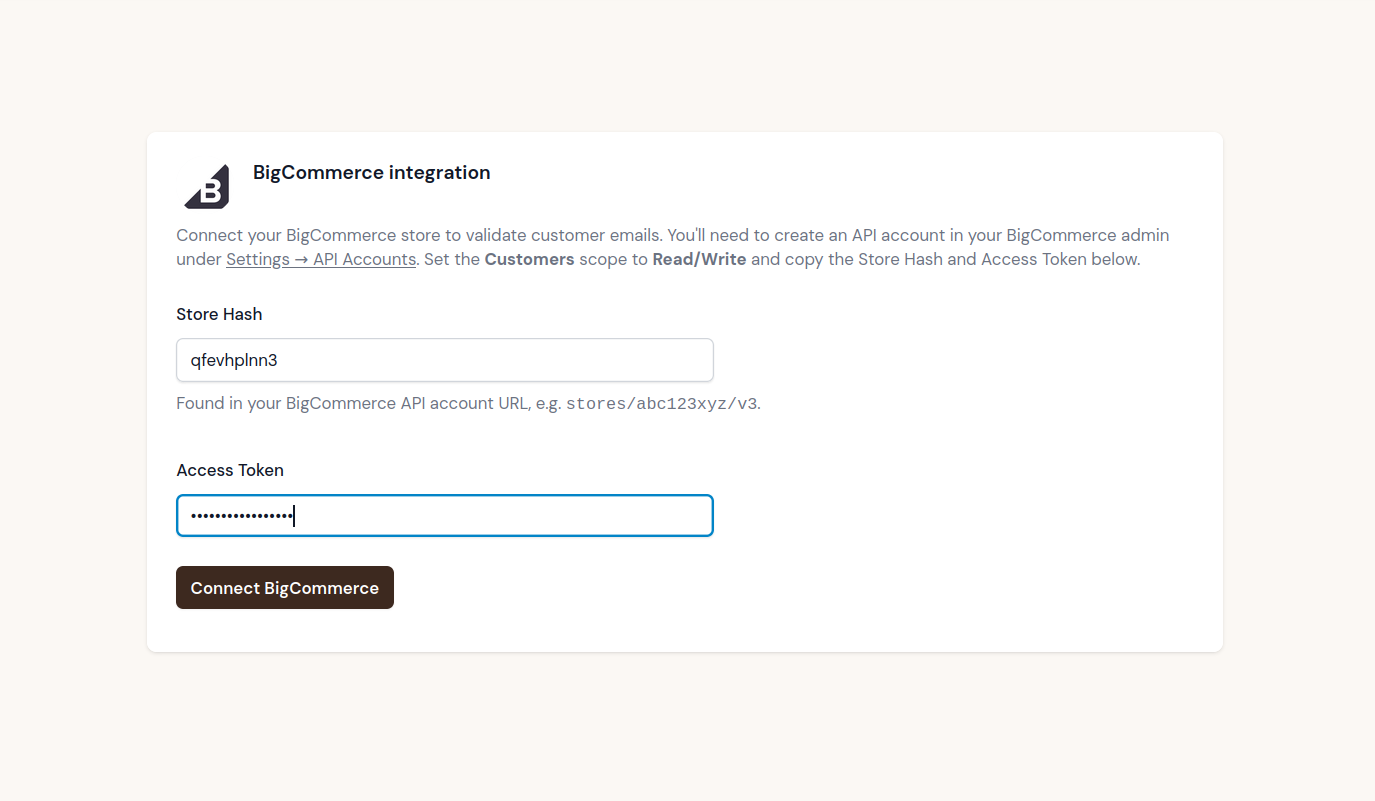
Keep this page open — you will get both values from BigCommerce in the next step.
Step 2: Get your Store Hash and Access Token from BigCommerce
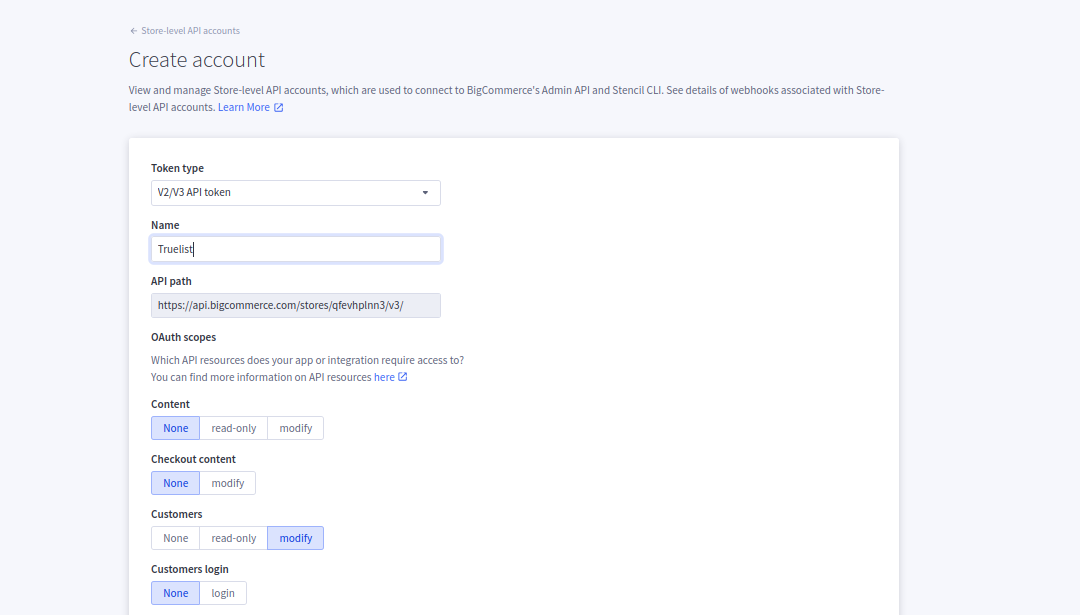
You need a BigCommerce Store-level API account with Customers Read/Write access.
- Log in to your BigCommerce admin panel.
- Go to Settings → API → Store-level API Accounts.
- Click Create API Account → Create V2/V3 API Token.
- Give the account a name (e.g. “Truelist”).
- Under OAuth Scopes, set Customers to Modify. Everything else can stay as None.
- Click Save.
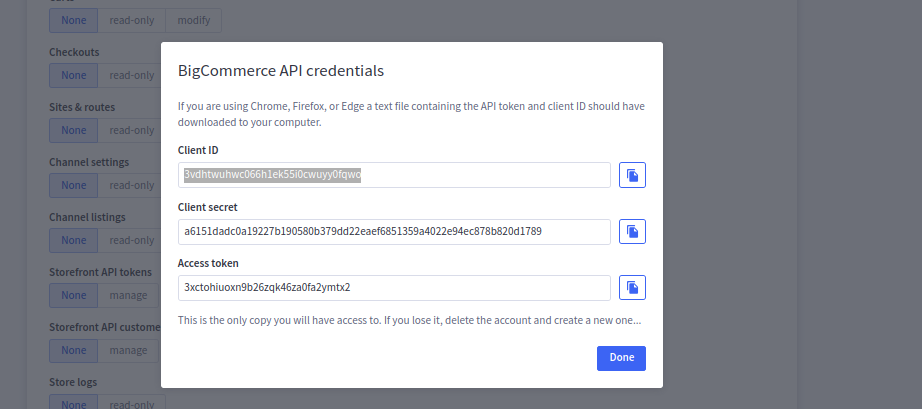
After saving, BigCommerce will show a credentials box. Copy the Access Token — you will only see it once. You can ignore the Client ID and Client Secret.
Your Store Hash is visible in the API path on that same page, in the format stores/abc123xyz/v3 — the hash is the alphanumeric segment between stores/ and /v3.
Step 3: Connect and start your first sync
Go back to the Truelist setup page, enter your Store Hash and Access Token, then click Connect BigCommerce.
After connecting, you will be taken to the integration settings page.
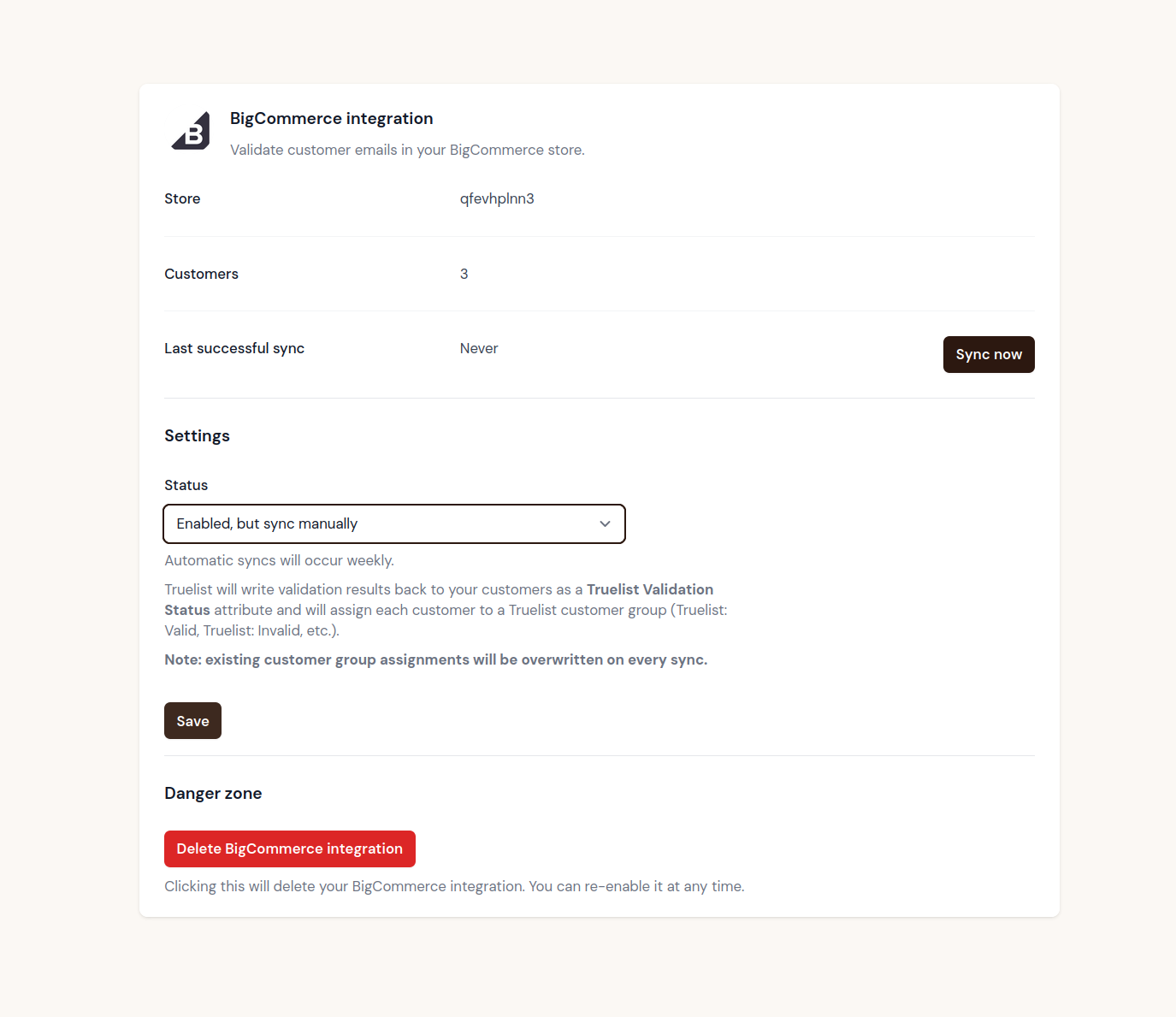
- Set the Status dropdown to your preferred sync mode.
- Click Save.
- Click Sync now to kick off your first validation run.
Viewing results
In Truelist
Once syncing starts, a batch will appear in the Lists section of your Truelist account showing validation progress.
Note: The CSV download for this batch will be empty. Results are written back directly to BigCommerce — not exported as a file. The list is only there so you can track progress.
In BigCommerce
After the sync completes, your BigCommerce admin will have four new customer groups: Truelist: Valid, Truelist: Invalid, Truelist: Risky, and Truelist: Unknown.
Go to Customers → View Customers in your BigCommerce admin. Each customer will be assigned to a group based on their validation result.
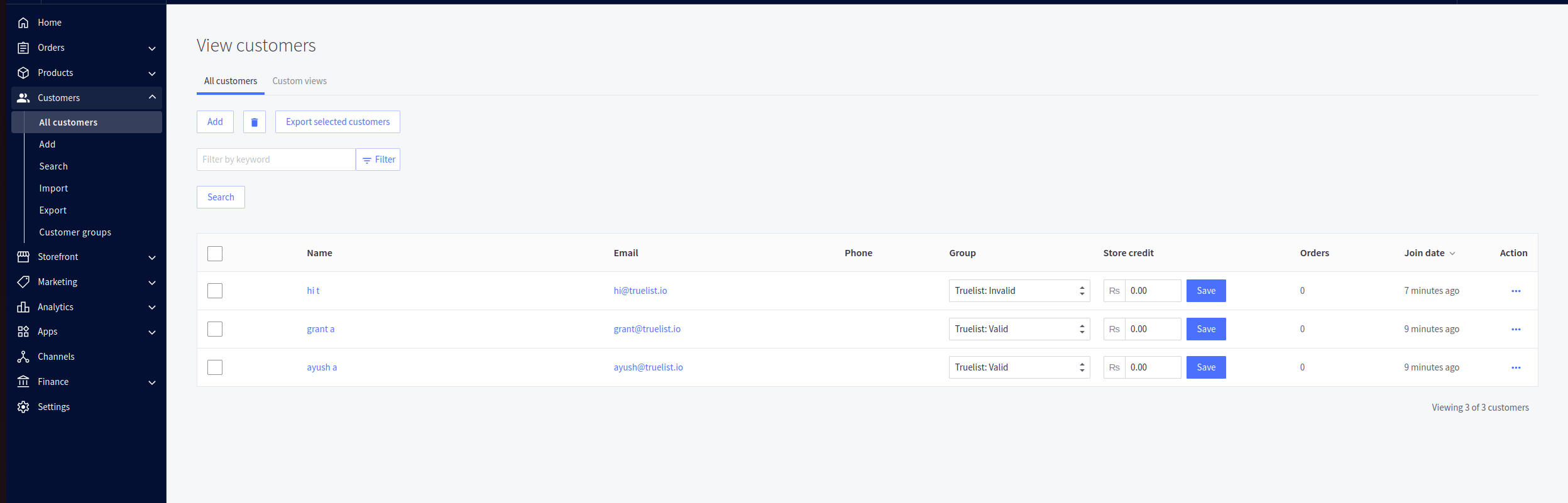
Note: The Group column shows the Truelist validation result for each customer. You can filter by group to quickly find all customers with invalid or risky addresses and exclude them from your campaigns.
You can also view the Truelist Validation Status attribute on individual customer profile pages under Customer Attributes.
Managing the integration
Sync settings
Use the Status dropdown to control how syncing works:
- Enabled, sync automatically — Truelist will validate your customer list on a weekly basis without any manual action.
- Enabled, but sync manually — Syncing is enabled but will only run when you click Sync now.
- Disabled — Syncing is paused. No new validations will run until you re-enable it.
Deleting the integration
Click Delete BigCommerce integration to remove the connection. This stops all syncing but does not delete any data in BigCommerce or Truelist — existing customer group assignments and attribute values are preserved. You can reconnect at any time.
Frequently asked questions
How often will my BigCommerce customers sync automatically?
When set to automatic, Truelist syncs your customer list once per week.
Will Truelist re-validate customers it has already checked?
Yes. Truelist re-validates existing customers according to the revalidation period configured in your validation settings. The default is 60 days.
Will existing customer groups be overwritten?
Yes. Truelist assigns every customer to a Truelist customer group during each sync, replacing any existing group assignment. If your store uses customer groups for other purposes such as wholesale pricing or loyalty tiers, those assignments will be replaced.
Why is the CSV empty when I download from the Lists section?
This is expected. When syncing with BigCommerce, validation results are written back directly to your store as customer group assignments and attributes. The list in Truelist is only used to track progress — your results live in BigCommerce.
What happens if my access token is revoked or changed?
If Truelist cannot authenticate with BigCommerce during a sync, the integration will be automatically disabled and you will receive an email notification. Go to Settings → Integrations → BigCommerce, delete the integration, and reconnect with your new credentials.
Does Truelist modify any customer data other than the attribute and group?
No. Truelist only sets the Truelist Validation Status custom attribute and the customer group assignment. It does not modify any other customer fields, delete customers, or change order or product data.
Why are some customers showing as unknown?
An unknown result means Truelist’s validation pipeline could not definitively confirm or deny the email address. This can happen with restrictive mail servers, catch-all domains, or temporary connectivity issues. Running another sync may resolve some unknowns over time.