How to Use Truelist with n8n
The Truelist n8n node lets you validate email addresses and manage bulk validation batches directly inside your n8n workflows. This guide walks through installing the node, setting up credentials, and using each available operation.
Step 1: Install the Truelist Community Node
Because Truelist is a community node, you need to install it once before it appears in the node panel.
- In your n8n instance, go to Settings → Community Nodes
- Click Install a community node
- Enter
@truelist/n8n-nodes-truelist - Check the acknowledgement checkbox and click Install
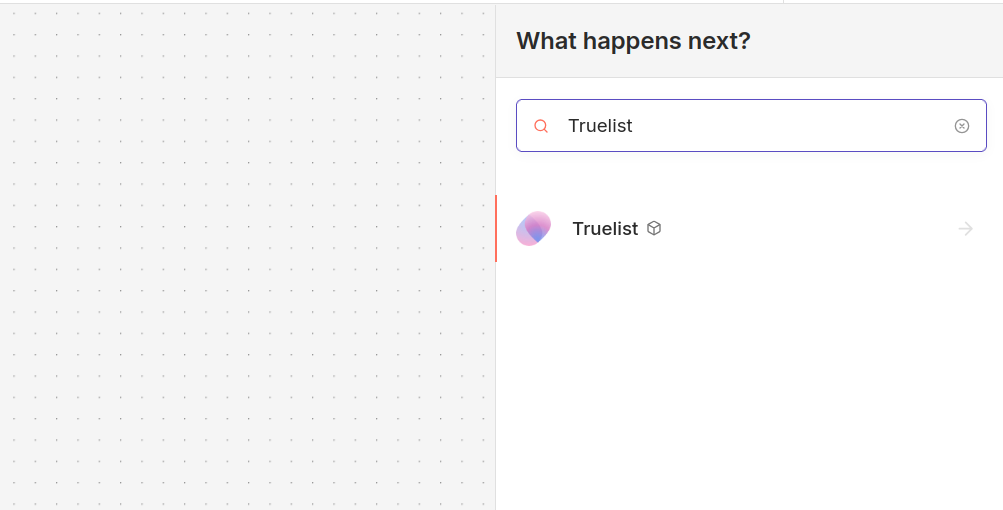
Once installed, search for Truelist in the node panel to add it to any workflow.
Step 2: Set Up Your Credentials
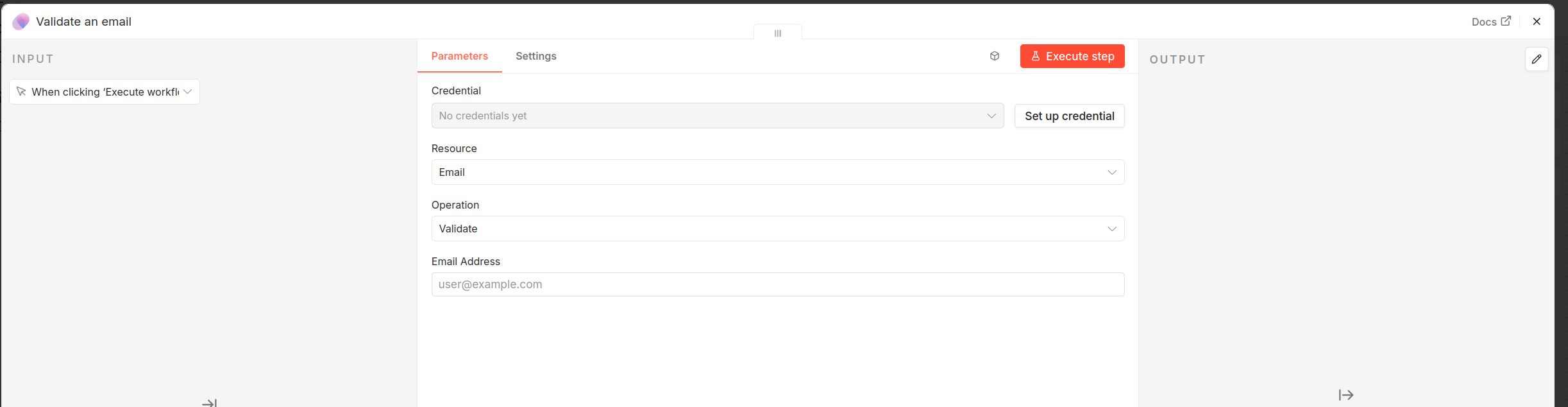
The first time you add a Truelist node, you will need to connect your Truelist account using an API key.
- In the Truelist node, click Set up credential
- Log in to your Truelist account and go to Settings → API Keys
- Click Add Key, give it a name, and copy the generated key
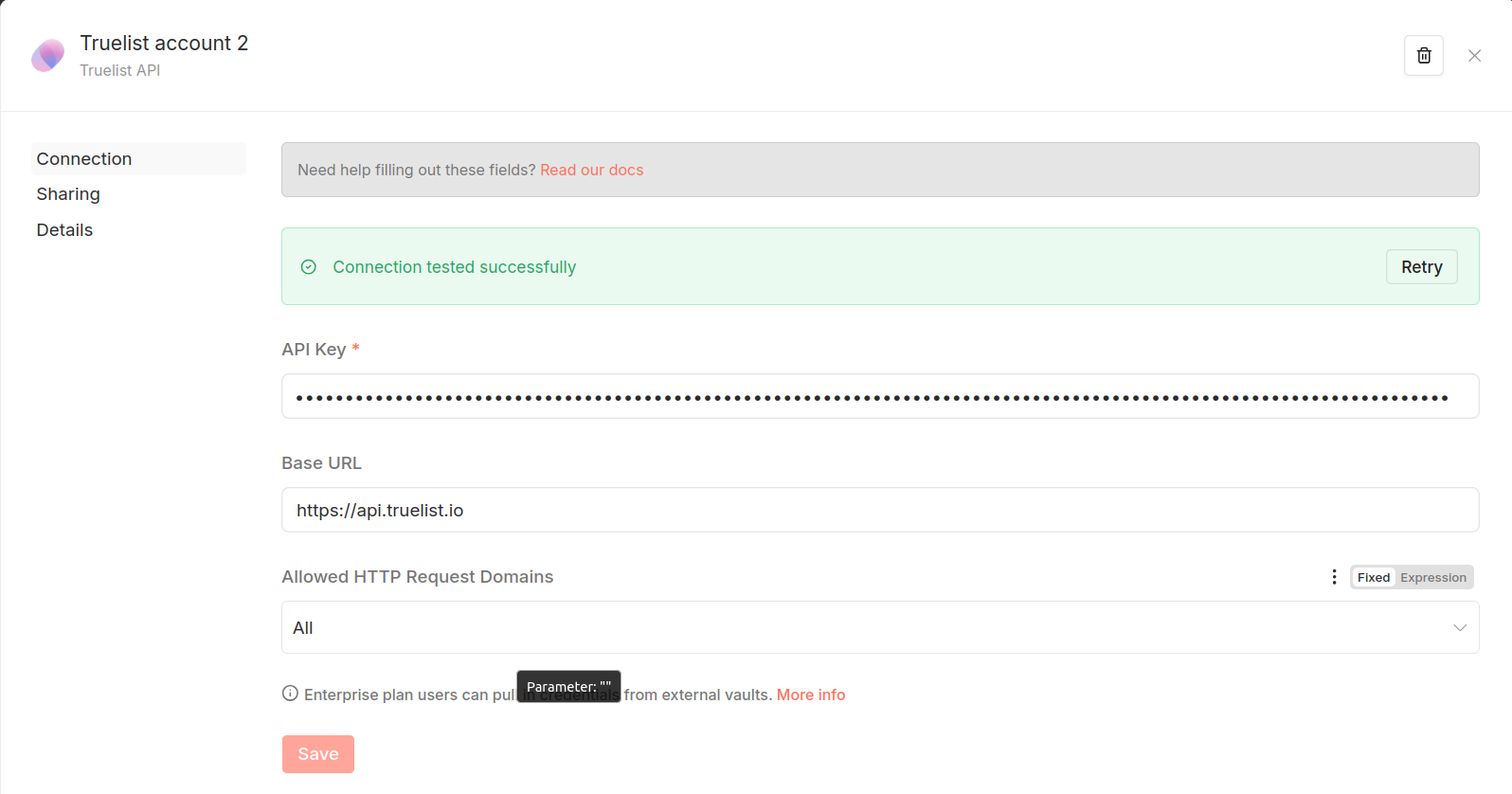
- Paste the API key into the API Key field in n8n
n8n will automatically test the connection. When you see Connection tested successfully, click Save.
Your credential is now saved and can be reused across all Truelist nodes in your workflows.
Email Operations
Validate a Single Email
Use this operation to validate one email address inline and get an immediate result. This is ideal for real-time validation — for example, checking an email the moment a user submits a form.
- Set Resource to
Emailand Operation toValidate - Enter the email address in the Email Address field (or use an expression like
{{ $json.email }}to pull it from a previous node)
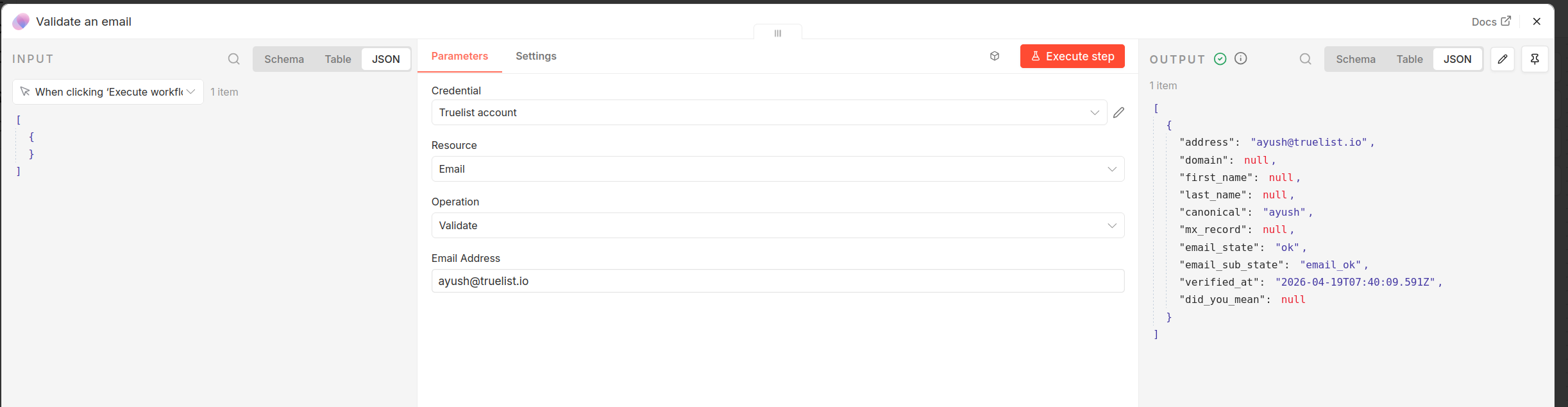
The output includes:
| Field | Description |
|---|---|
email_state | Overall result: ok, invalid, risky, or unknown |
email_sub_state | Detailed reason, e.g. email_ok, failed_no_mailbox, is_disposable |
address | The email address that was validated |
verified_at | Timestamp of when the validation was performed |
did_you_mean | Suggested correction if a typo was detected |
List Emails
Use this operation to retrieve previously validated email addresses stored in your Truelist account. You can filter results to find exactly the emails you need.
- Set Resource to
Emailand Operation toList - Toggle Return All to retrieve every matching record, or set a Limit (default: 50)
- Click Add Filter to narrow results
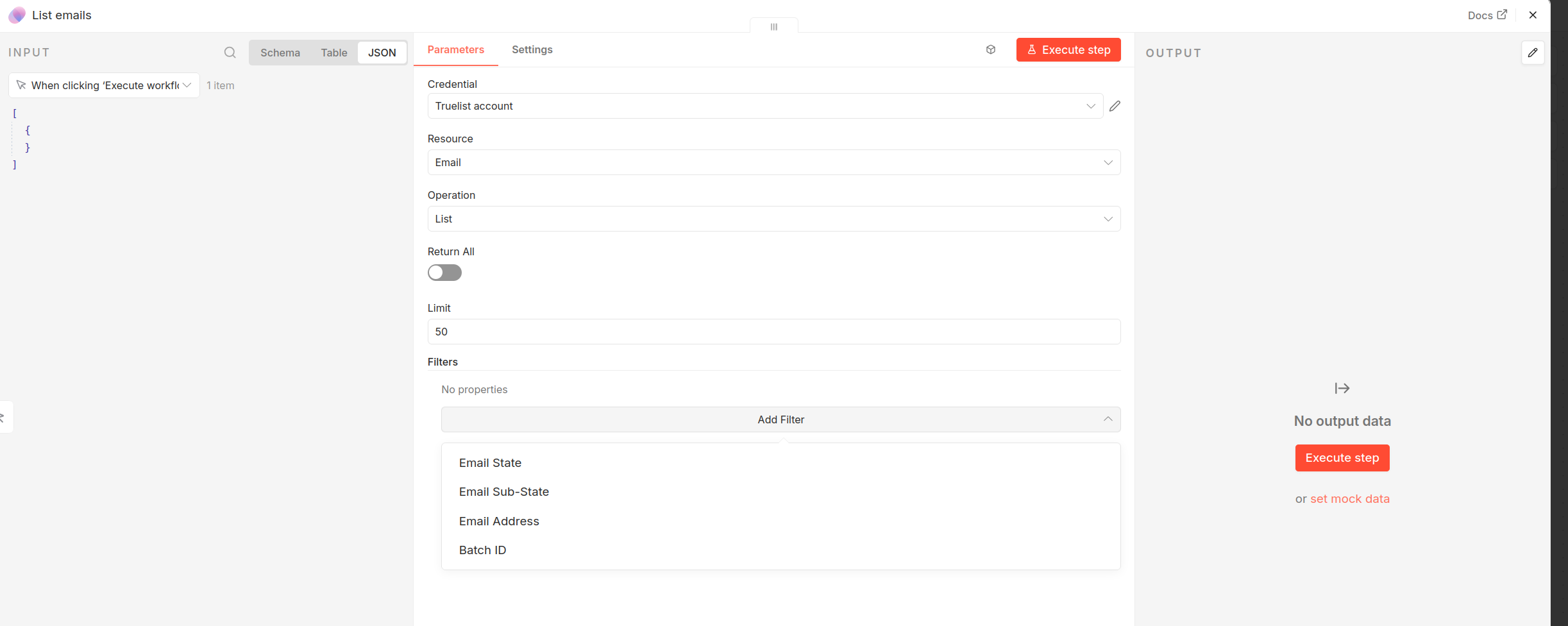
Available filters:
| Filter | Description |
|---|---|
| Email State | Filter by validation result: ok, invalid, risky, or unknown |
| Email Sub-State | Filter by a specific sub-state, e.g. is_disposable, failed_no_mailbox |
| Email Address | Search for a specific email address |
| Batch ID | Return only emails that belong to a particular batch |
You can combine multiple filters together. For example, filter by Email State = invalid and Batch ID to get all invalid emails from a specific batch run.
Batch Operations
Batch operations let you validate large lists of emails in bulk. Batches process asynchronously — Truelist handles the queue and you can poll for status or use a webhook to be notified when processing is complete.
Create a Batch
Upload a list of emails for bulk validation.
- Set Resource to
Batchand Operation toCreate - Enter your emails in the Emails field as a comma-separated list, newline-separated, or a JSON array via an n8n expression
- Expand Additional Fields to set optional parameters
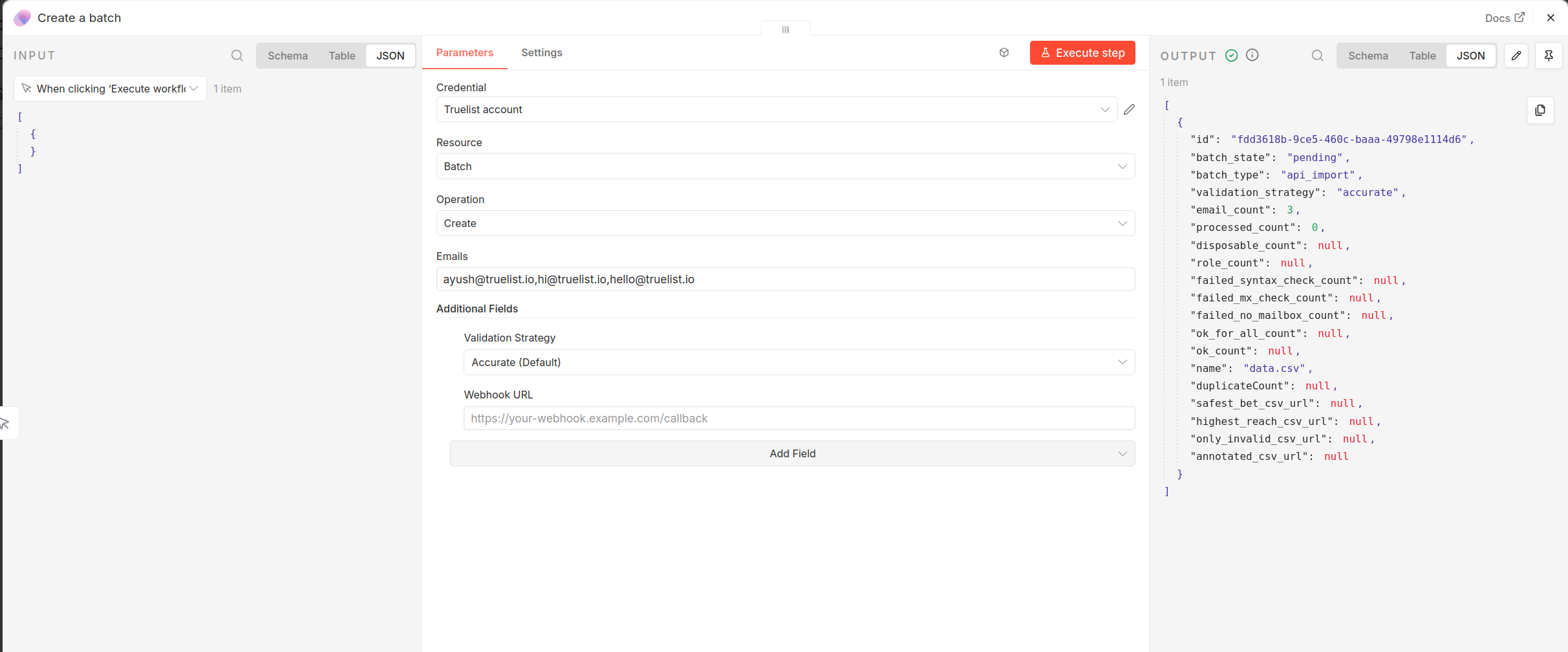
Additional Fields:
| Field | Description |
|---|---|
| Validation Strategy | Controls how thoroughly each email is checked (see below) |
| Webhook URL | A URL n8n or your server should receive a POST to when the batch finishes processing |
| Filename | A label for this batch (default: data.csv) |
Validation Strategies:
| Strategy | Description | Cost |
|---|---|---|
| Fast | SMTP check only — quickest turnaround | 1 credit per email |
| Accurate (default) | SMTP check with improved accuracy | 1 credit per email |
| Enhanced | SMTP + HaveIBeenPwned lookup + browser-based validation for the highest accuracy | 1 standard + 1 enhanced credit |
Using a Webhook URL means you do not need to poll for status — Truelist will call your URL with the completed batch data as soon as processing finishes. This is the recommended approach for large batches.
The output includes the batch id, batch_state (pending, processing, completed), and counts for each validation result category.
Estimate a Batch
Before creating a batch, use this operation to check how many credits it will consume and get a time estimate.
- Set Resource to
Batchand Operation toEstimate - Enter your email list in the Emails field
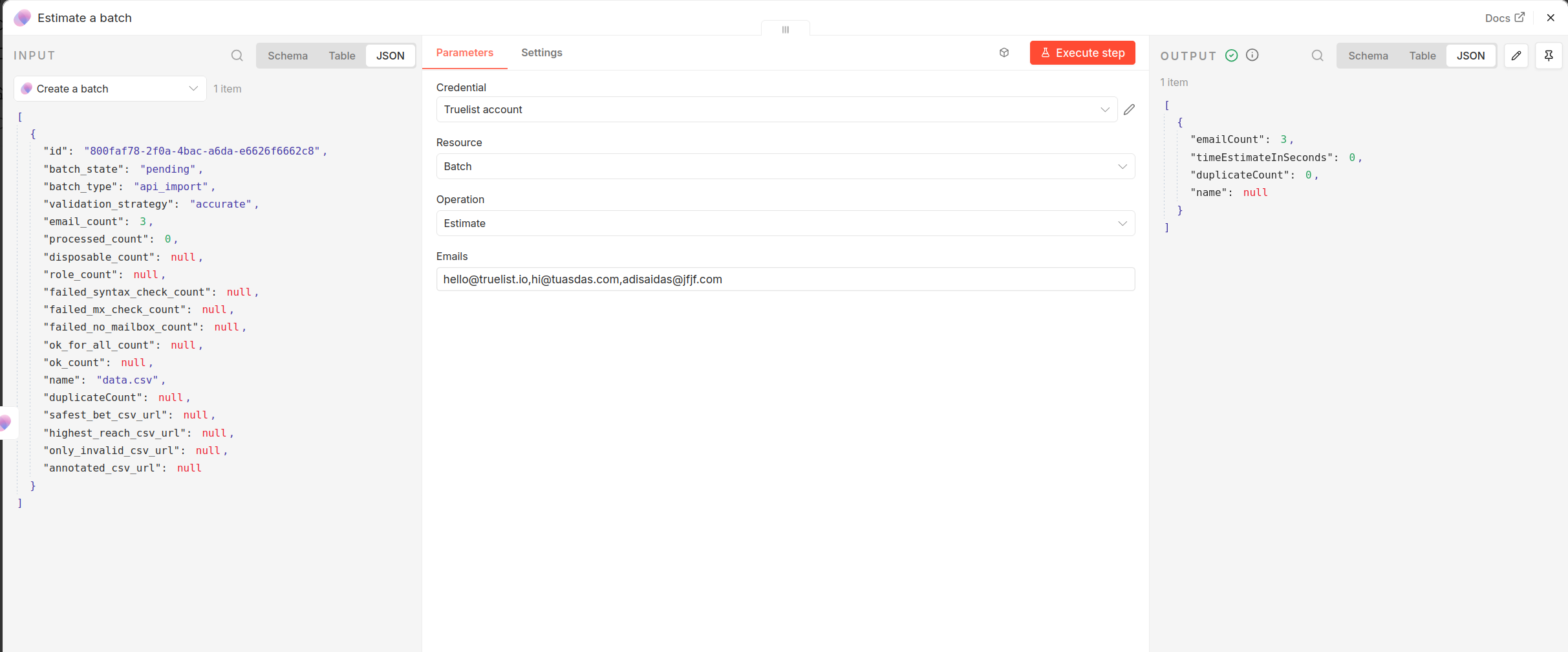
The output returns emailCount, timeEstimateInSeconds, and duplicateCount so you can confirm you have enough credits before kicking off a large run.
Get a Batch
Fetch the current status and full details of a specific batch.
- Set Resource to
Batchand Operation toGet - Enter the Batch ID (the
idfield returned when the batch was created)
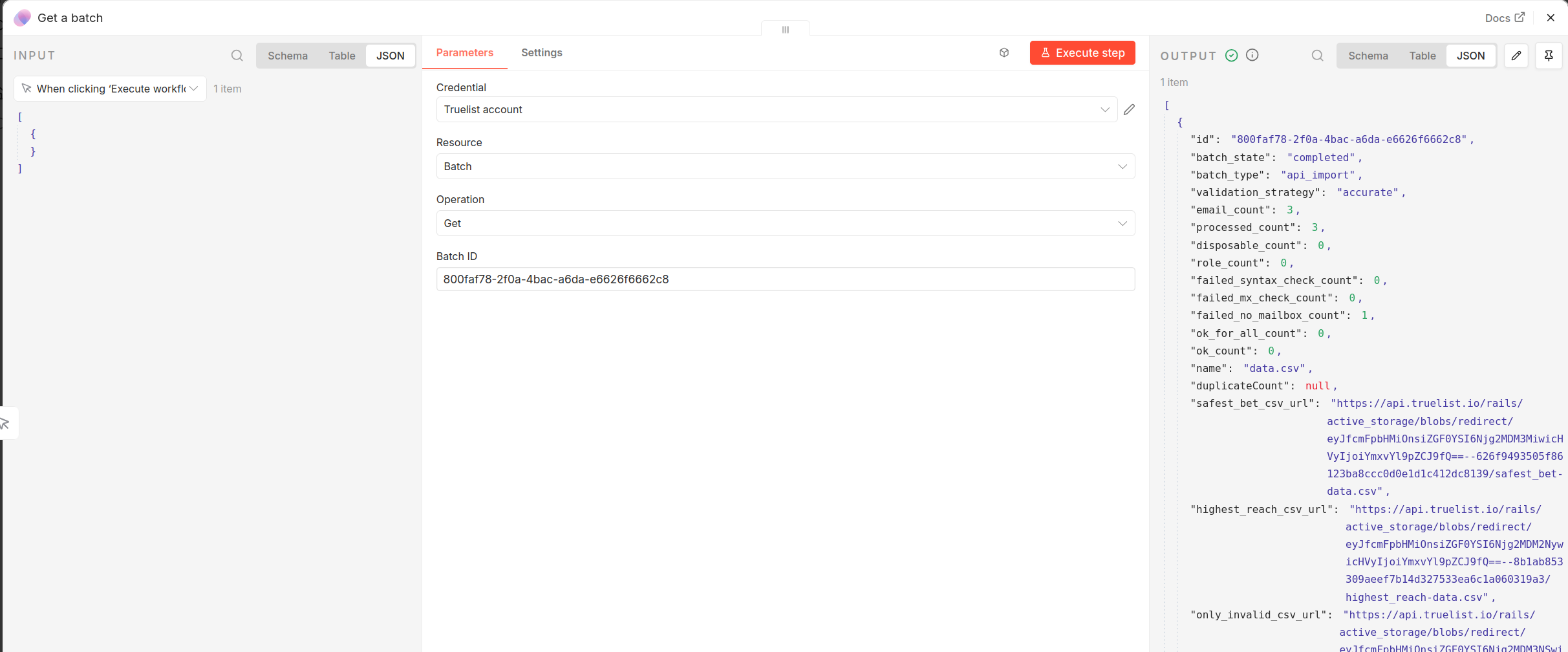
Use this in a loop or a wait step to poll until batch_state equals completed before downloading results.
List Batches
Retrieve all batches on your account.
- Set Resource to
Batchand Operation toList
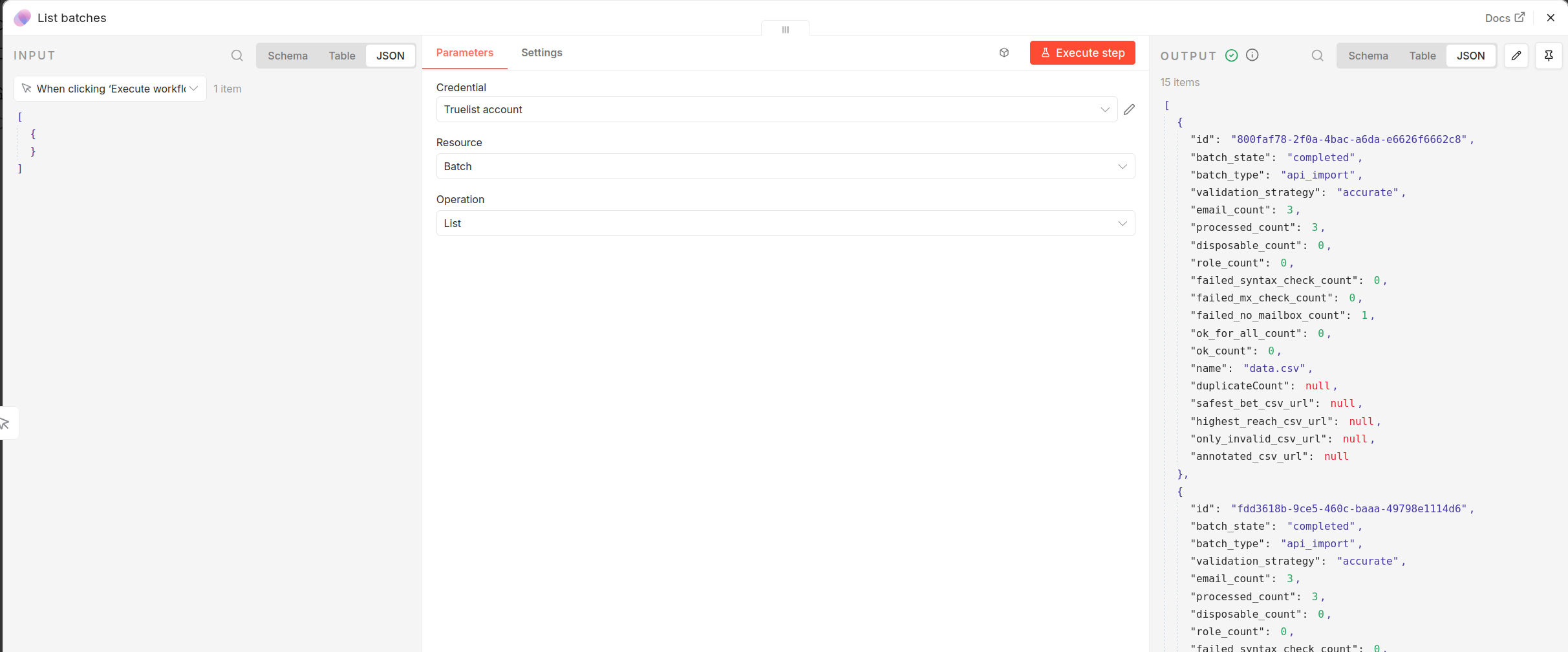
Each batch object includes its state, email counts, validation strategy, and download URLs (once completed).
Download Batch Results
Download the validated results of a completed batch as a CSV file. The CSV is returned as binary data attached to the output item under the data key, ready to be written to disk, emailed, or passed to another node.
- Set Resource to
Batchand Operation toDownload - Enter the Batch ID
- Choose a Result Type
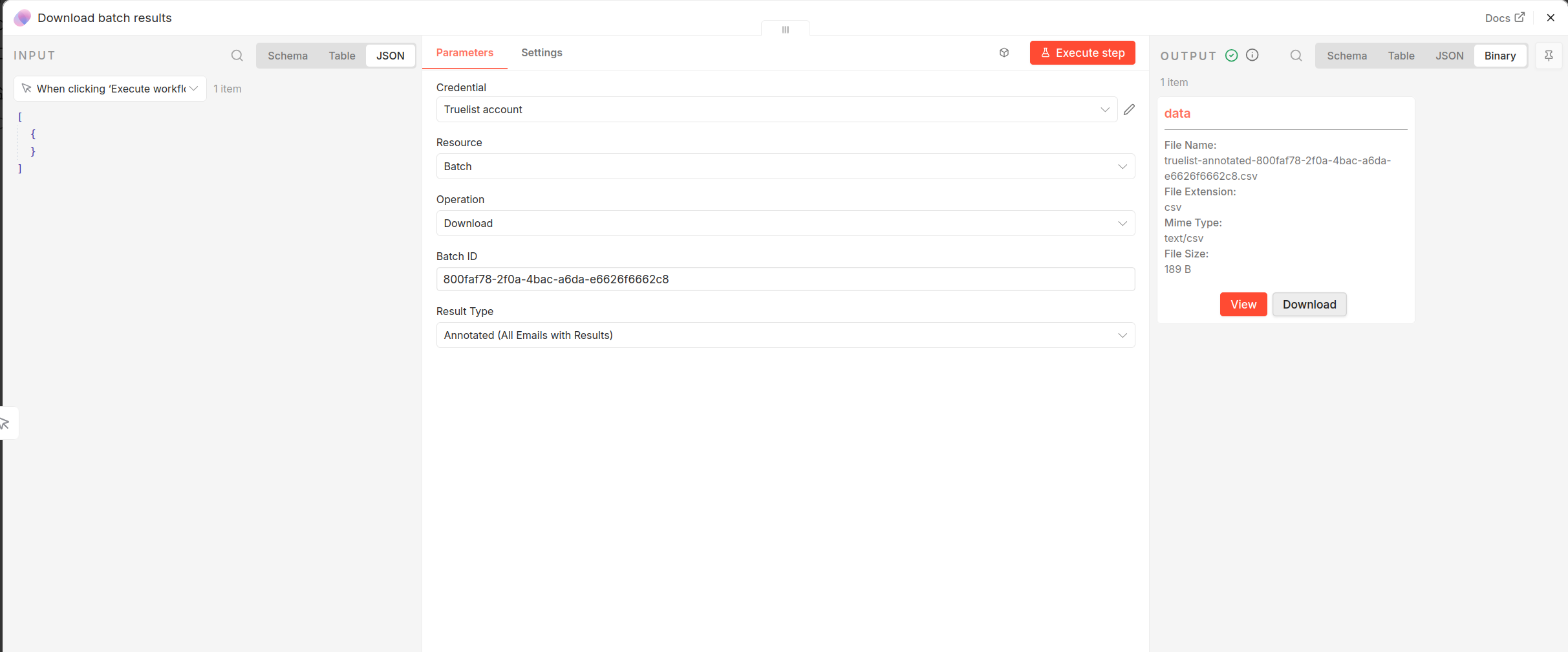
Result Types:
| Type | Description |
|---|---|
| Annotated | All emails with validation results appended as extra columns |
| Safest Bet | Only emails confirmed as valid — most conservative send list |
| Highest Reach | Valid emails plus accept-all domains — most inclusive send list |
| Only Invalid | Only emails that failed validation |
Delete a Batch
Permanently delete a batch and all its associated results.
- Set Resource to
Batchand Operation toDelete - Enter the Batch ID
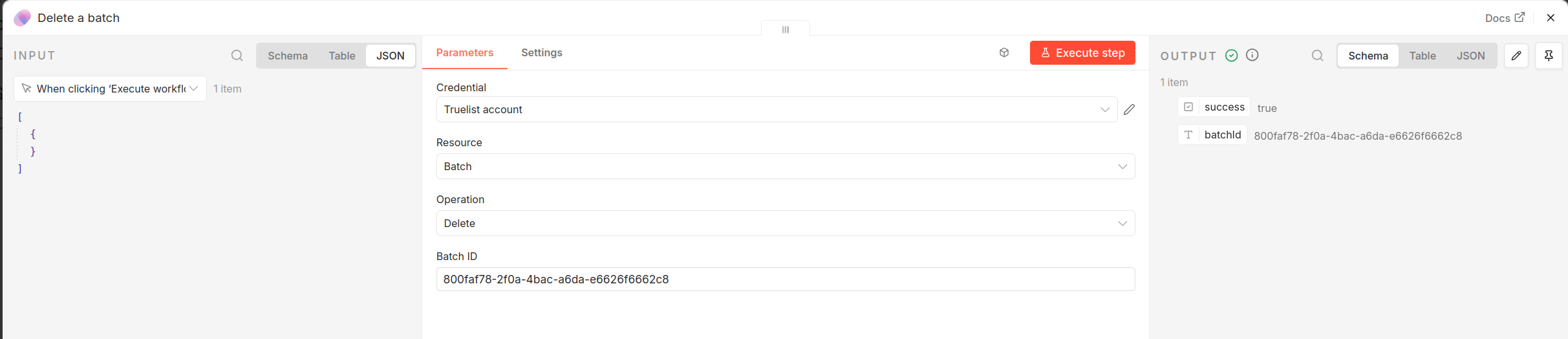
The output returns success: true and the batchId that was deleted.
Understanding Validation Results
| State | Sub-state | Meaning |
|---|---|---|
ok | email_ok | Valid, deliverable email address |
ok | accept_all | Domain accepts all mail — individual deliverability unverified |
risky | is_disposable | Temporary or disposable email address |
risky | is_role | Role address (e.g. info@, support@, admin@) |
invalid | failed_syntax_check | Invalid email format |
invalid | failed_mx_check | Domain has no valid mail server |
invalid | failed_smtp_check | SMTP server rejected the address |
invalid | failed_no_mailbox | Mailbox does not exist |
unknown | — | Validity could not be determined |
Frequently Asked Questions
Do I need a Truelist account?
Yes. Sign up for free at app.truelist.io — the free plan includes 100 validations with no credit card required.
Does the community node work on n8n Cloud?
Community nodes are only supported on self-hosted n8n instances. If you are on n8n Cloud, you can use the Truelist API directly via n8n’s built-in HTTP Request node.
How do I know when a batch is finished?
You can either provide a Webhook URL when creating the batch (Truelist will POST to it when done), or use a loop with the Get Batch operation to poll until batch_state is completed.
Where do I find my API key?
In your Truelist account, go to Settings → API Keys.
Where can I get help?
Reach out to us at hello@truelist.io or visit the API documentation.