How to integrate Truelist with Klaviyo
Truelist has a direct integration with Klaviyo that validates your subscribers and writes the result back to each profile as a custom property called truelist_email_state. This guide walks you through setup, syncing, checking results, and building segments.
How the integration works
When you connect Klaviyo, Truelist fetches all profiles from the list you select and runs each email address through its full validation pipeline. Once complete, Truelist updates each Klaviyo profile with a custom property:
- valid — The email address is valid and safe to send to.
- risky — The email address may be valid but carries some risk (e.g. disposable or role address).
- invalid — The email address is invalid and should not be sent to.
- unknown — Truelist could not determine the validity of the email address.
You can use this property in Klaviyo to build segments, suppress invalid addresses from flows and campaigns, and keep your list clean over time.
Step 1 — Create a Private API Key in Klaviyo
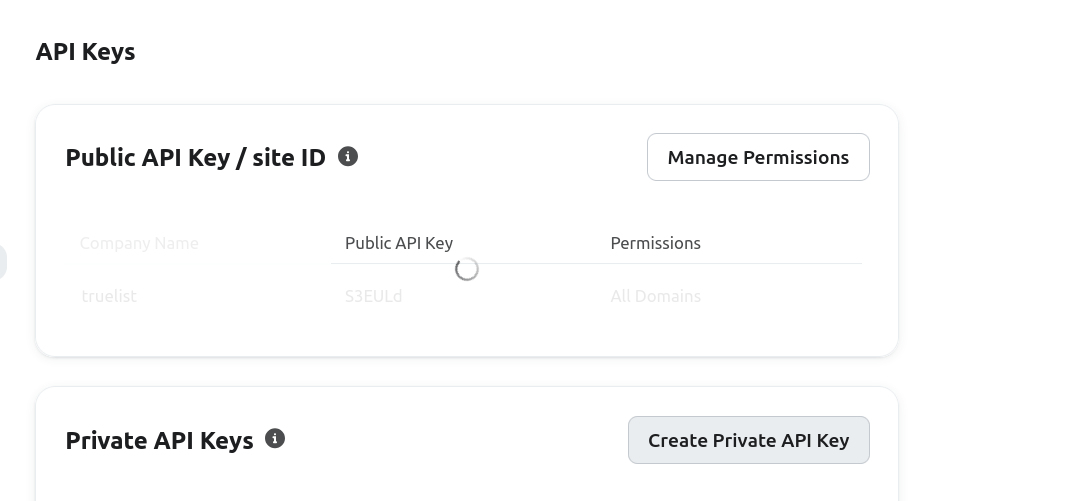
Go to your Klaviyo account and navigate to Account → Settings → API Keys. You will see your Public API Key at the top and a Private API Keys section below it. Click Create Private API Key.
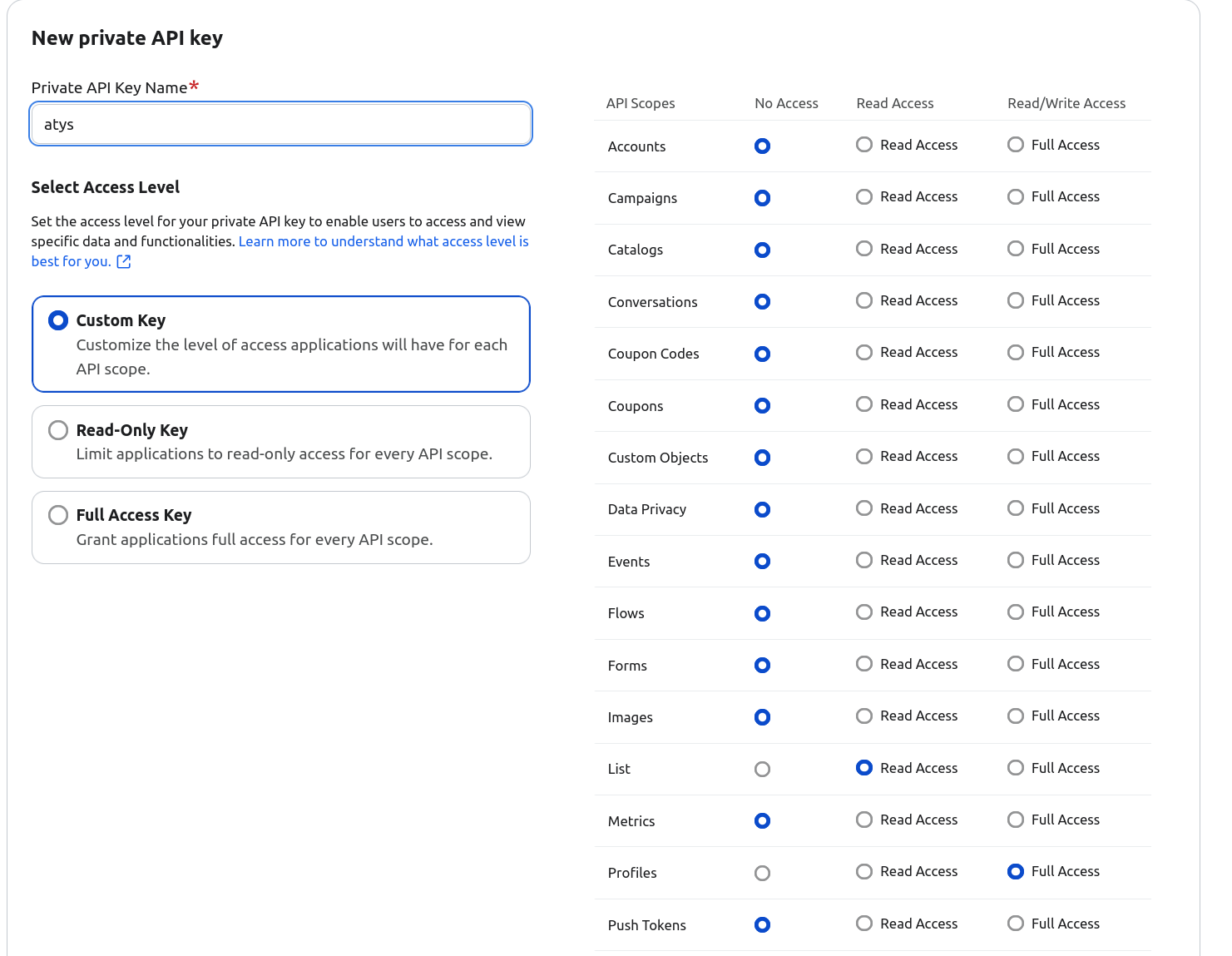
On the key creation screen, give it a name (e.g. “Truelist”) and set the access level. You have two options:
- Custom Key — Set Lists to Read Access and Profiles to Full Access.
- Full Access Key — Grants all scopes. Simpler if you don’t need granular control.
Copy the key once created — it starts with pk_.
Step 2 — Connect Klaviyo in Truelist
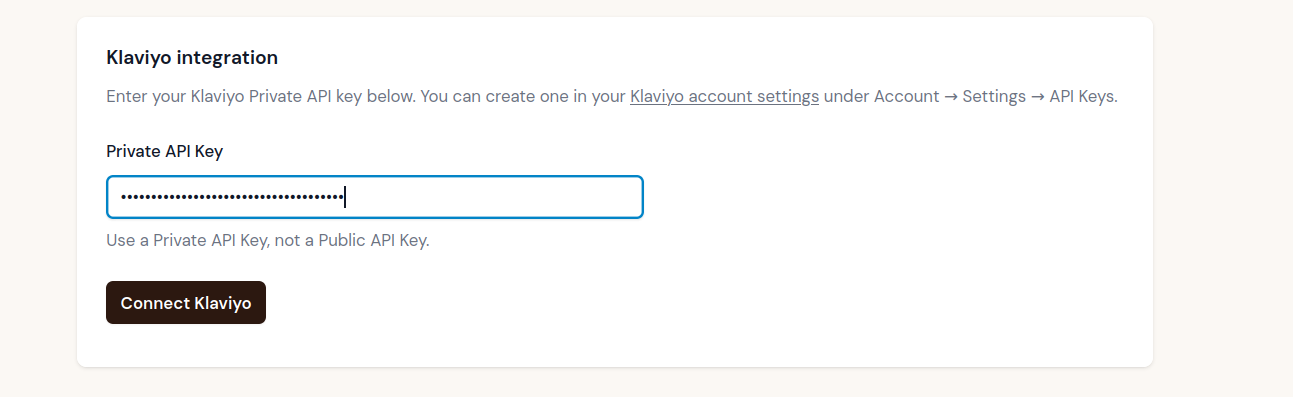
Go to Settings → Integrations in your Truelist account. Find the Klaviyo card under Available integrations and click Set up.

Paste your Private API Key into the field and click Connect Klaviyo.
Step 3 — Configure the integration
After connecting, you will be taken to the Klaviyo integration settings page. From here you can:
- Select a list — Choose which Klaviyo list you want Truelist to validate.
- Set sync status — Choose between automatic weekly syncing, manual-only syncing, or disabled.
- Sync now — Kick off an immediate validation run.
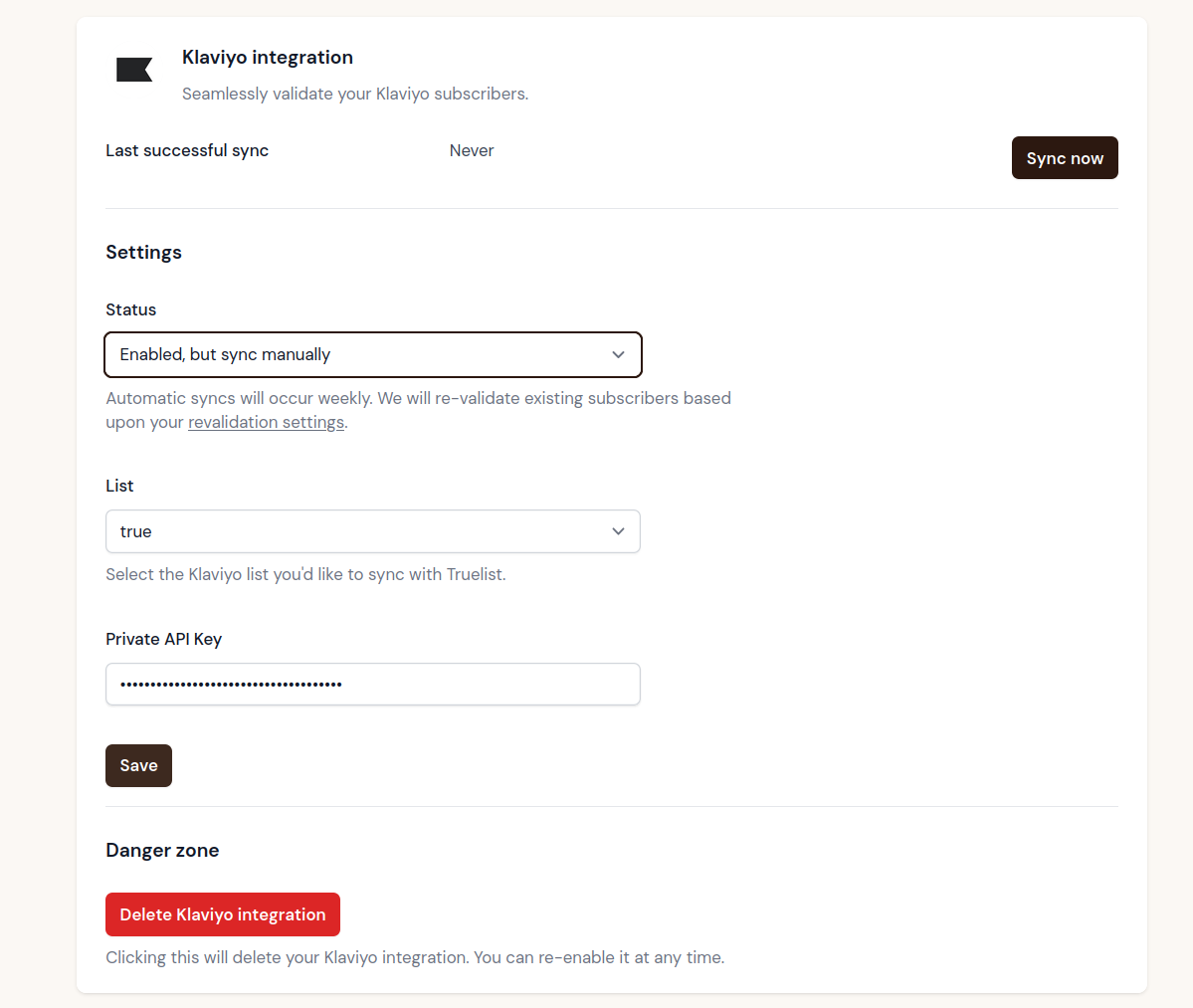
Select your list, click Save, then click Sync now to run your first validation.
Note: You must select a list and save before clicking Sync now.
Step 4 — Check results in Truelist
Once the sync completes, you will see the validated list appear in your Completed Lists in Truelist. The list name will be prefixed with “Klaviyo —“.

Note: The validation results are written directly back to your Klaviyo profiles — if you download the CSV from the completed list in Truelist, it will be empty. To view the results in Truelist, go to the Reports section and filter by the Klaviyo list name.
Step 5 — Check the email state on a Klaviyo profile
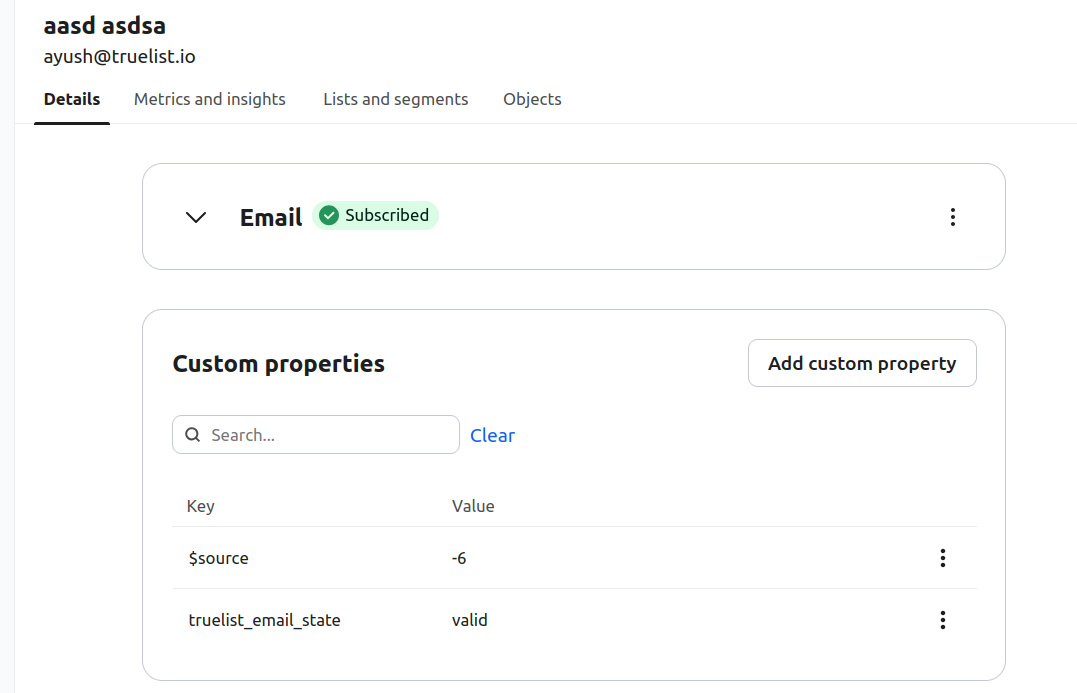
In Klaviyo, open any profile from your list and scroll to Custom properties. You will see truelist_email_state with its value — valid, risky, invalid, or unknown.
Step 6 — Build segments using the email state
You don’t need to check profiles one by one. Use Klaviyo’s Segment builder to filter your entire list by truelist_email_state.
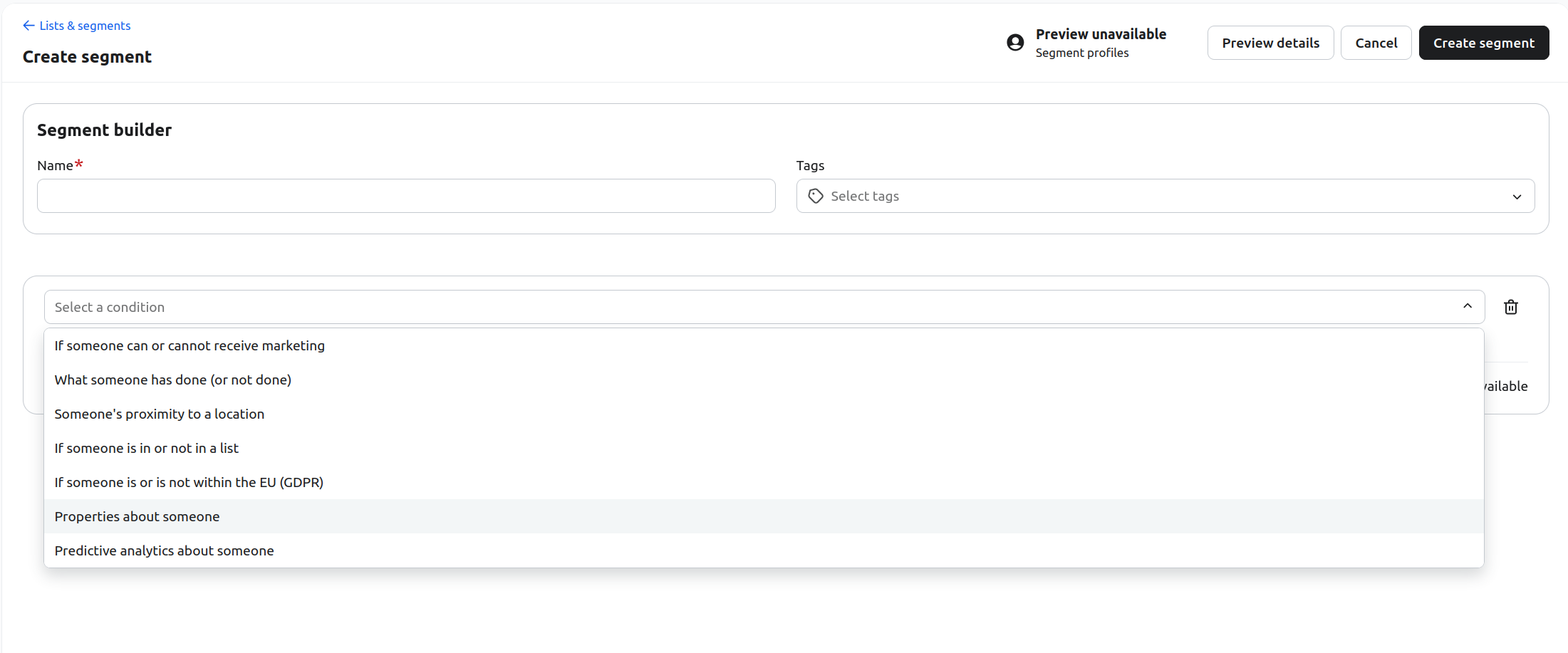
Go to Lists & Segments → Create segment. Add a condition and choose Properties about someone.
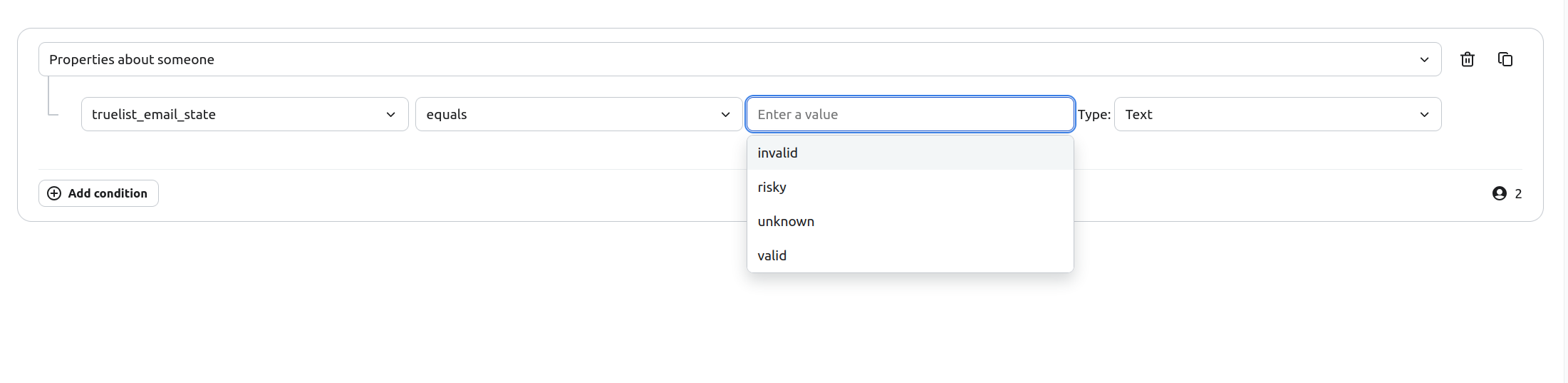
Select truelist_email_state as the property, set the operator to equals, and choose the value you want to filter on — invalid, risky, unknown, or valid.
Give the segment a name and click Create segment. Klaviyo will immediately show you how many profiles match.
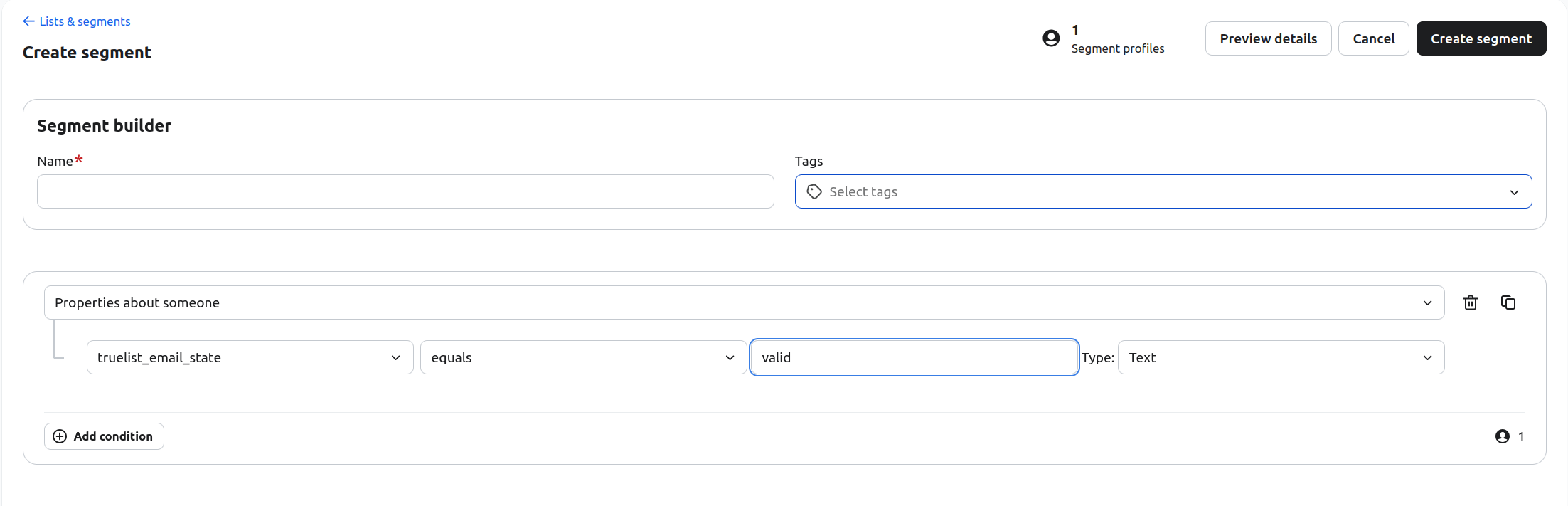
You can now use these segments to suppress invalid addresses from campaigns and flows, or to target only verified valid subscribers.
Managing the integration
Sync settings
Use the Status dropdown to control how syncing works:
- Enabled, sync automatically — Truelist validates your list on a weekly basis automatically.
- Enabled, but sync manually — Only syncs when you click Sync now.
- Disabled — Pauses all syncing.
Deleting the integration
Click Delete Klaviyo integration to remove the connection. This stops all syncing but does not delete any data in Klaviyo or Truelist. You can reconnect at any time.
Frequently Asked Questions
What scopes does the API key need?
Your Private API Key needs Lists (Read Access) and Profiles (Full Access). You can also use a Full Access Key to keep it simple.
How often does automatic sync run?
Once per week.
Will Truelist re-validate profiles it has already checked?
Yes, based on the revalidation period in your validation settings. The default is 60 days.
Will the integration modify my Klaviyo profile data?
Truelist only writes the truelist_email_state custom property. It does not delete profiles, unsubscribe contacts, or modify any other data.