How to Use Truelist with Zapier
Truelist is available as an action in Zapier, letting you verify email addresses in real time inside any Zap. Use it to catch invalid emails before they reach your CRM, email platform, or any other connected app.
Step 1: Install the Truelist App
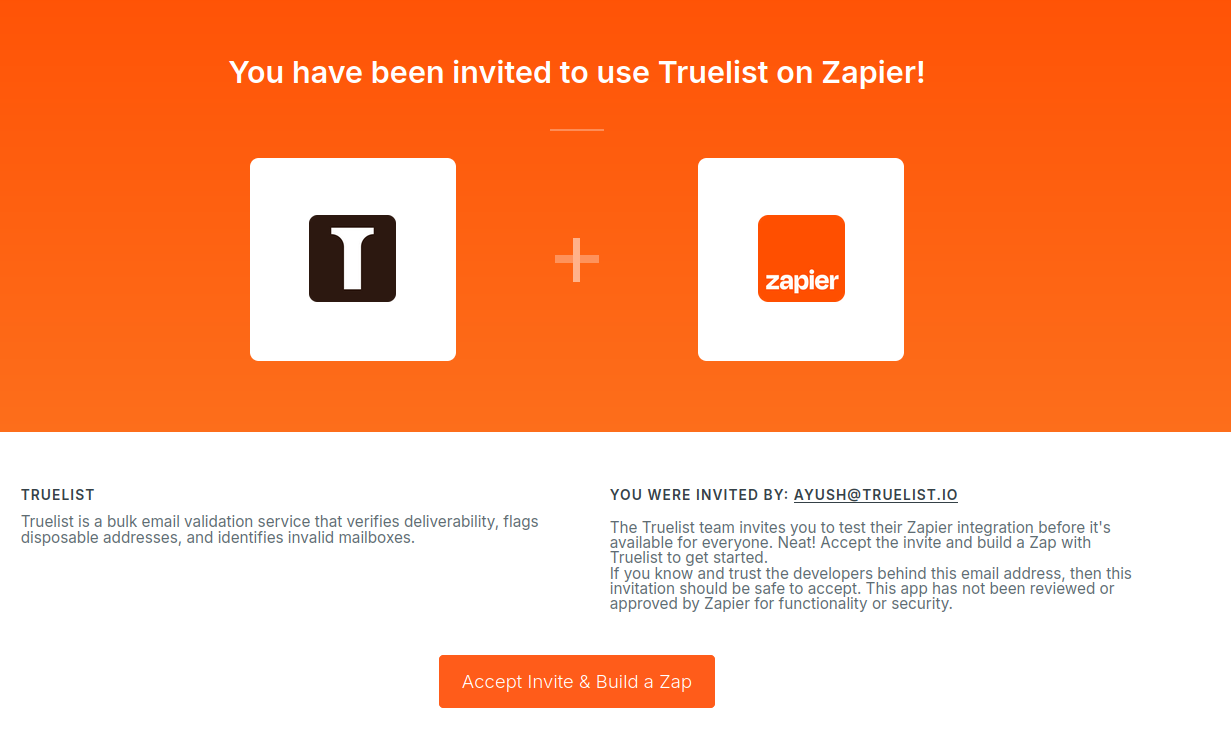
Truelist is available via a direct invite link while the integration is in beta.
- Open the invite link: Add Truelist to Zapier
- Click Accept Invite & Build a Zap
Step 2: Connect Your Truelist Account
The first time you add a Truelist action to a Zap, Zapier will ask you to connect your account.
- In your Zap, add a Truelist action step
- In the Account section, click Sign in
- Log in to your Truelist account and go to Settings → API Keys
- Click Add Key, give it a name, and copy the generated key
- Paste the API key into the API Key field in Zapier and click Yes, Continue
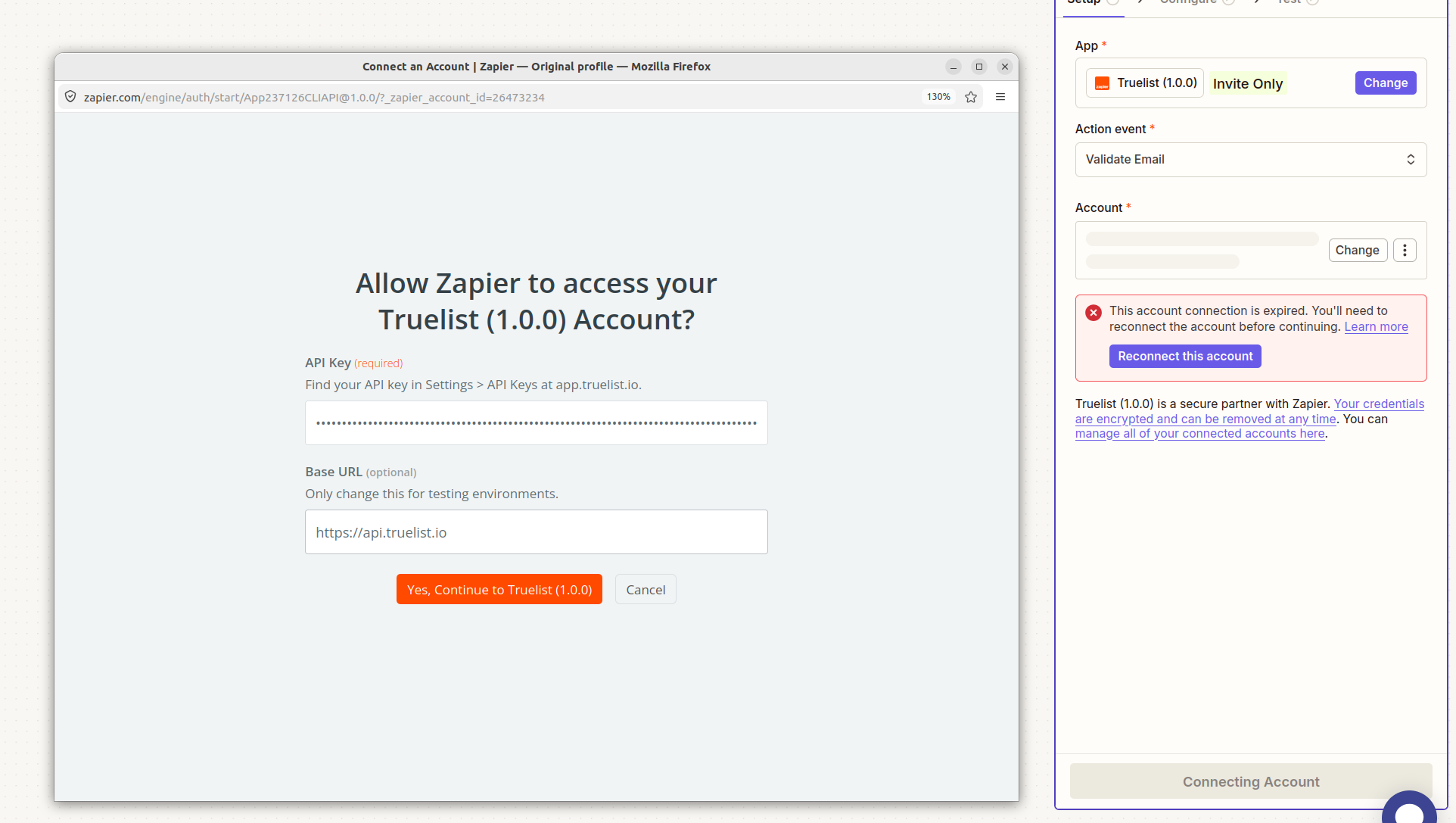
Your account is now connected and can be reused across all Truelist steps in your Zaps.
Available Actions
Validate Email
The most common action. Validates a single email address in real time and returns the result instantly — ideal for checking emails as they come in from form submissions, lead captures, or any other trigger.
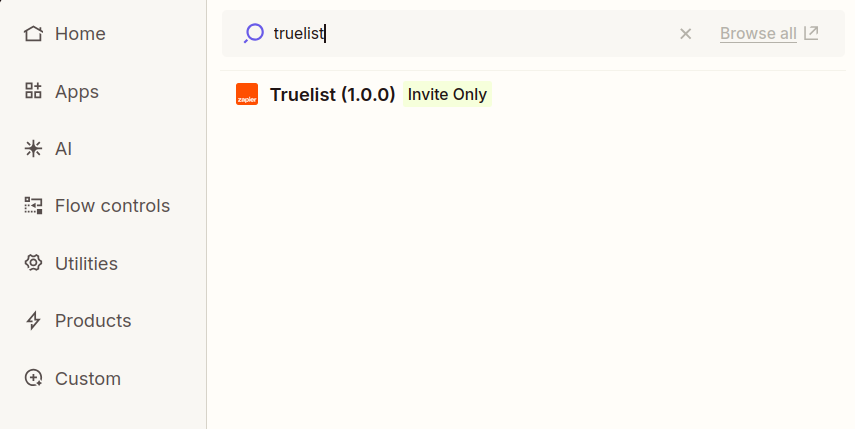
- In your Zap, add a Truelist action and select Validate Email
- Search for Truelist in the actions panel
- In the Email Address field, map the email from your trigger (e.g. the email field from a Typeform or Google Form submission)
- Click Test action to verify it’s working
The action returns:
| Field | Description |
|---|---|
email_state | Overall result: ok, invalid, risky, or unknown |
email_sub_state | Detailed reason: email_ok, failed_no_mailbox, is_disposable, accept_all, etc. |
address | The email address that was validated |
domain | The domain of the email address |
did_you_mean | Suggested correction if a typo was detected (e.g. gmial.com → gmail.com) |
verified_at | Timestamp of when the validation was performed |
Use a Filter or Paths step after Validate Email to route the Zap based on email_state. For example, only continue if email_state equals ok.
Create Batch
Uploads a list of email addresses for bulk validation. Use this when you have a list of emails to process rather than a single address.
- Email Addresses: One email per line, or comma-separated
- Filename: Optional label for the batch (defaults to
zapier-import.csv) - Validation Strategy:
fast,accurate(default), orenhanced
Returns a batch id that you can use with Get Batch to check progress.
Get Batch
Retrieves the current status and results of a batch. Use this after Create Batch to check if processing is complete and retrieve download URLs for the results.
Returns batch_state (pending, processing, completed), counts by result type, and CSV download URLs once complete.
Estimate Batch
Returns an estimated processing time and credit cost for a list of emails before you create a batch. Useful for large lists where you want to confirm the cost upfront.
Download Batch Results
Retrieves a signed download URL for a completed batch’s results CSV. Choose from:
- Annotated — all emails with validation results appended
- Safest Bet — confirmed valid emails only
- Highest Reach — valid + accept-all emails
- Only Invalid — invalid emails only
List Emails
Retrieves previously validated email addresses from your Truelist account, with optional filtering by state, sub-state, or batch.
Common Zap Pattern: Real-Time Form Validation
A typical use case is validating an email the moment someone submits a form, then routing valid and invalid submissions differently.
- Trigger: New form submission (Typeform, Google Forms, Webflow, etc.)
- Action: Truelist → Validate Email (map the email field from step 1)
- Filter: Only continue if
email_state=ok - Action: Add contact to your CRM or email platform
This ensures only verified emails reach your downstream tools.
Frequently Asked Questions
How does Truelist verify emails?
Truelist performs multi-stage verification: syntax checking, MX record lookup, and SMTP-level mailbox checking. Enhanced validation adds browser-based verification for a higher confidence result.
Does each verification use a Zapier task?
Yes, each Truelist action step counts as one Zapier task. Factor this into your Zapier plan when estimating usage.
Can I verify emails in bulk through Zapier?
Zapier processes records one at a time as they trigger. For bulk list verification, use Create Batch to upload a full list, or use Truelist’s direct upload for the fastest bulk processing.
What does accept_all mean?
The domain accepts all incoming email without rejecting invalid mailboxes at the SMTP level. Truelist cannot confirm whether the specific mailbox exists. Use your own judgement on whether to send to these addresses.
What should I do with unknown results?
Unknown means Truelist could not determine validity — usually because the mail server was unresponsive or greylisted. You can choose to allow, quarantine, or retry these depending on your risk tolerance.