How to integrate Truelist with Go High Level
Truelist has a direct integration with Go High Level (GHL) that validates your contact list and writes the validation result back to each contact as a tag. This guide walks you through setup and day-to-day management.
How the integration works
When you connect Go High Level, Truelist fetches all contacts from your selected location (sub-account) and runs each email address through its full validation pipeline. Once validation is complete, Truelist applies one of the following tags to each contact in GHL:
- truelist-valid — The email address is valid and safe to send to.
- truelist-risky — The email address may be valid but carries some risk (e.g. disposable or role address).
- truelist-invalid — The email address is invalid and should not be sent to.
- truelist-unknown — Truelist could not determine the validity of the email address.
You can use these tags in Go High Level to build smart lists, suppress invalid addresses from campaigns and workflows, and keep your contact list clean over time.
Tags are additive — Truelist will never remove or overwrite your existing tags. Validation tags are merged alongside any tags you have already applied to your contacts.
After setup, Truelist can validate your list automatically on a weekly basis, or you can trigger a sync manually at any time.
Step-by-Step Setup
You can connect Truelist to Go High Level in two ways — from the Truelist dashboard or from the Go High Level App Marketplace. Both paths use the same OAuth flow and result in the same connection.
Option 1: Connect from the Truelist dashboard
Go to Settings > Integrations in your Truelist account.
Find the Go High Level card under Available integrations and click Set up.

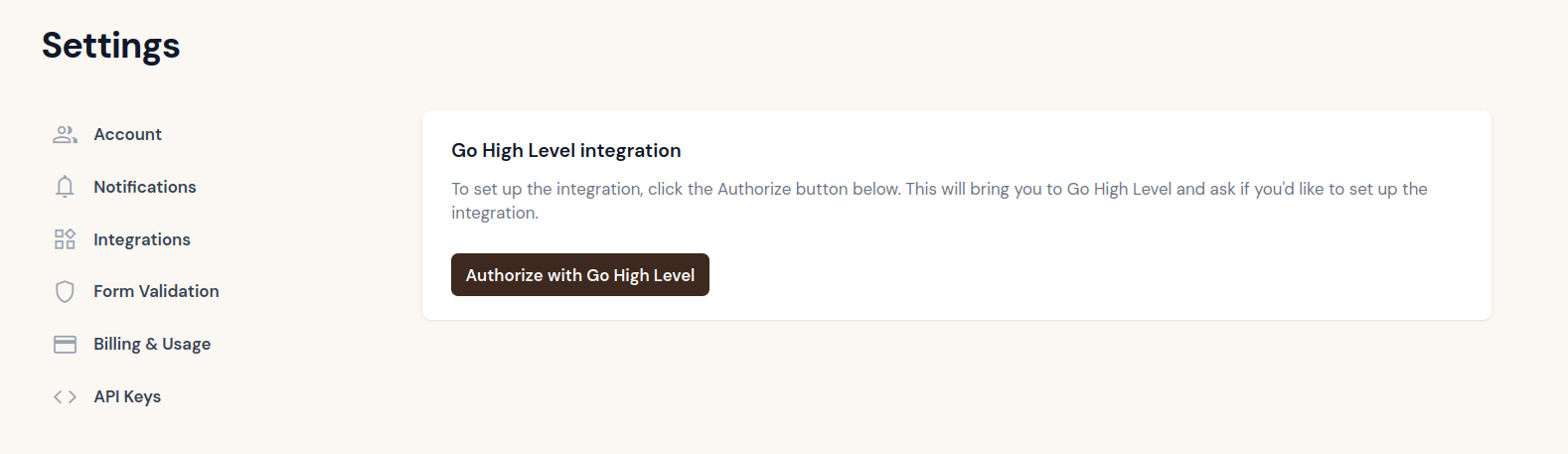
On the setup page, click Authorize with Go High Level.
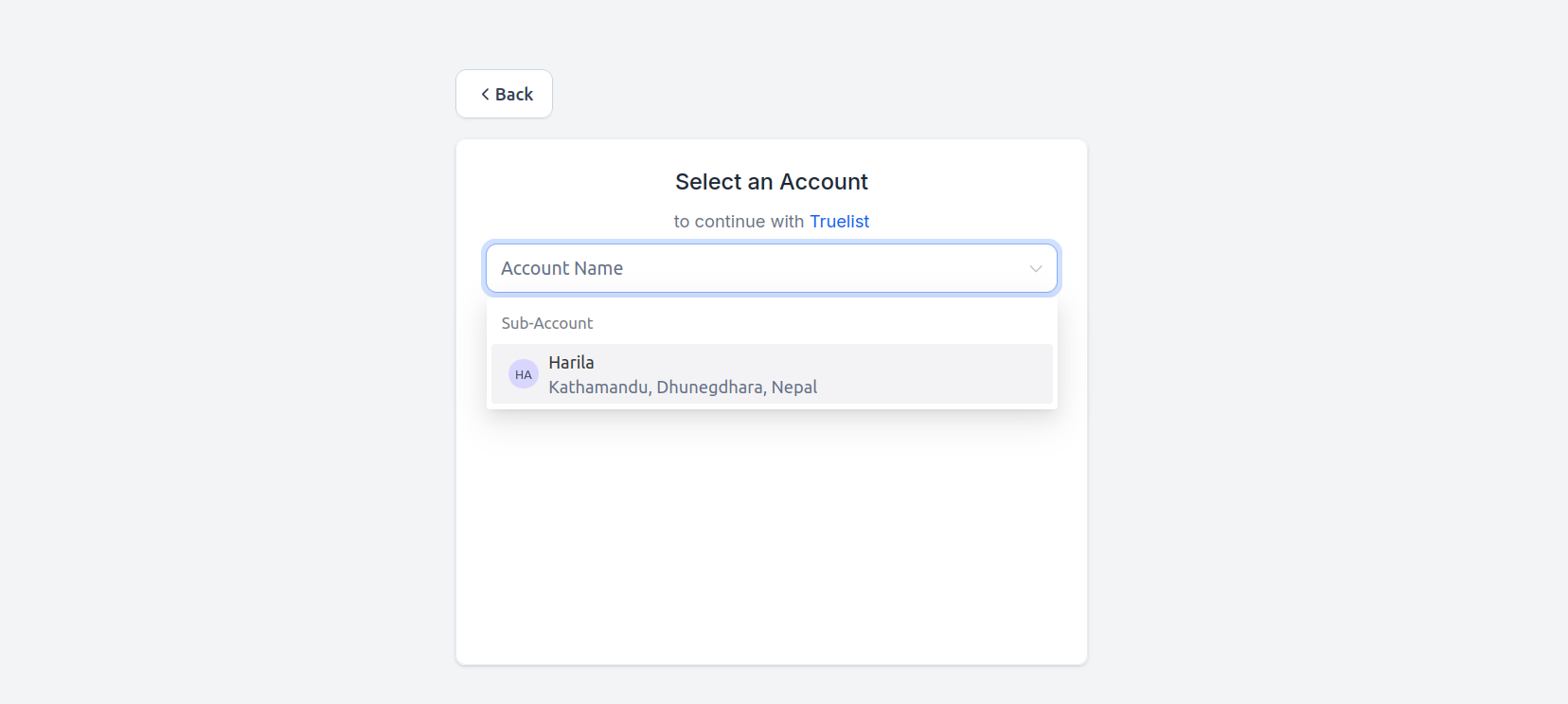
You will be redirected to Go High Level’s account selection screen. Choose the location (sub-account) you want to connect.
Review the requested permissions and approve the connection.
Once authorized, you will be redirected back to Truelist, where the Go High Level settings page will appear with a success message.
Option 2: Install from the Go High Level App Marketplace
Inside your Go High Level account, go to Settings > Integrations > Marketplace and search for Truelist.
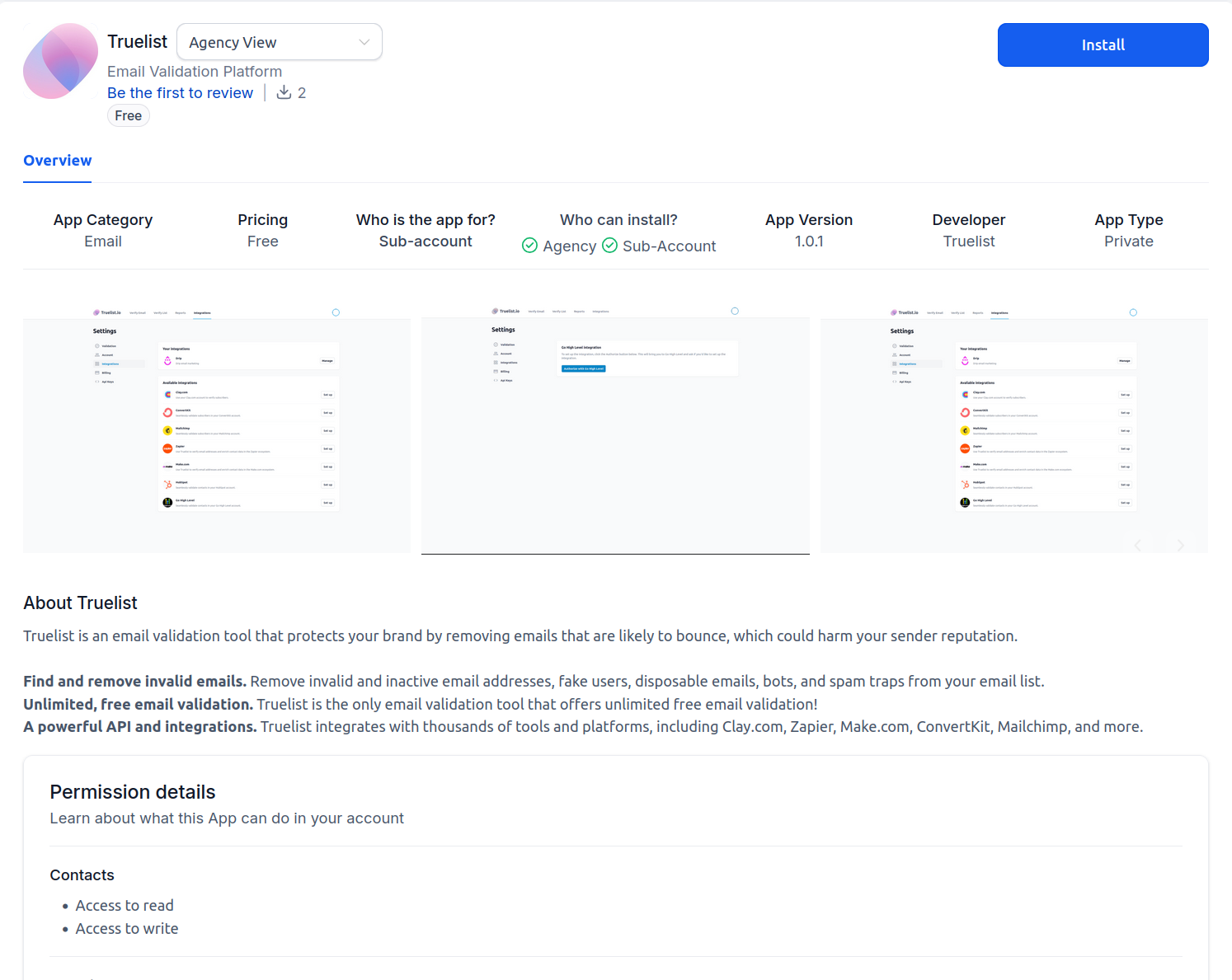
Open the Truelist app listing and click Install.
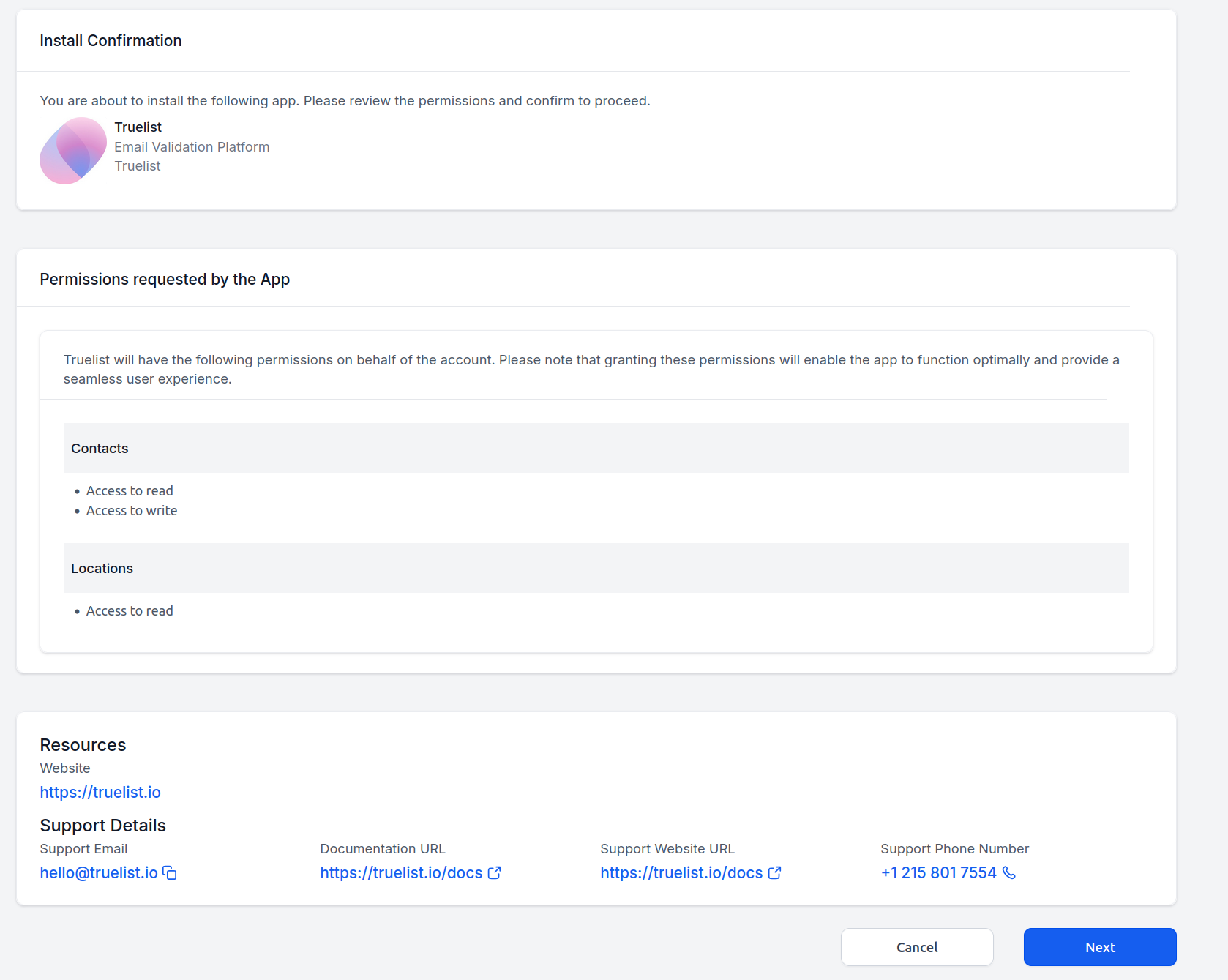
Review the permissions on the Install Confirmation screen and click Next to proceed.
Follow the remaining prompts to complete the OAuth authorization. You’ll be directed to Truelist to finish setup.
Once either flow is complete, click Sync now to kick off your first validation run.
Managing the Integration
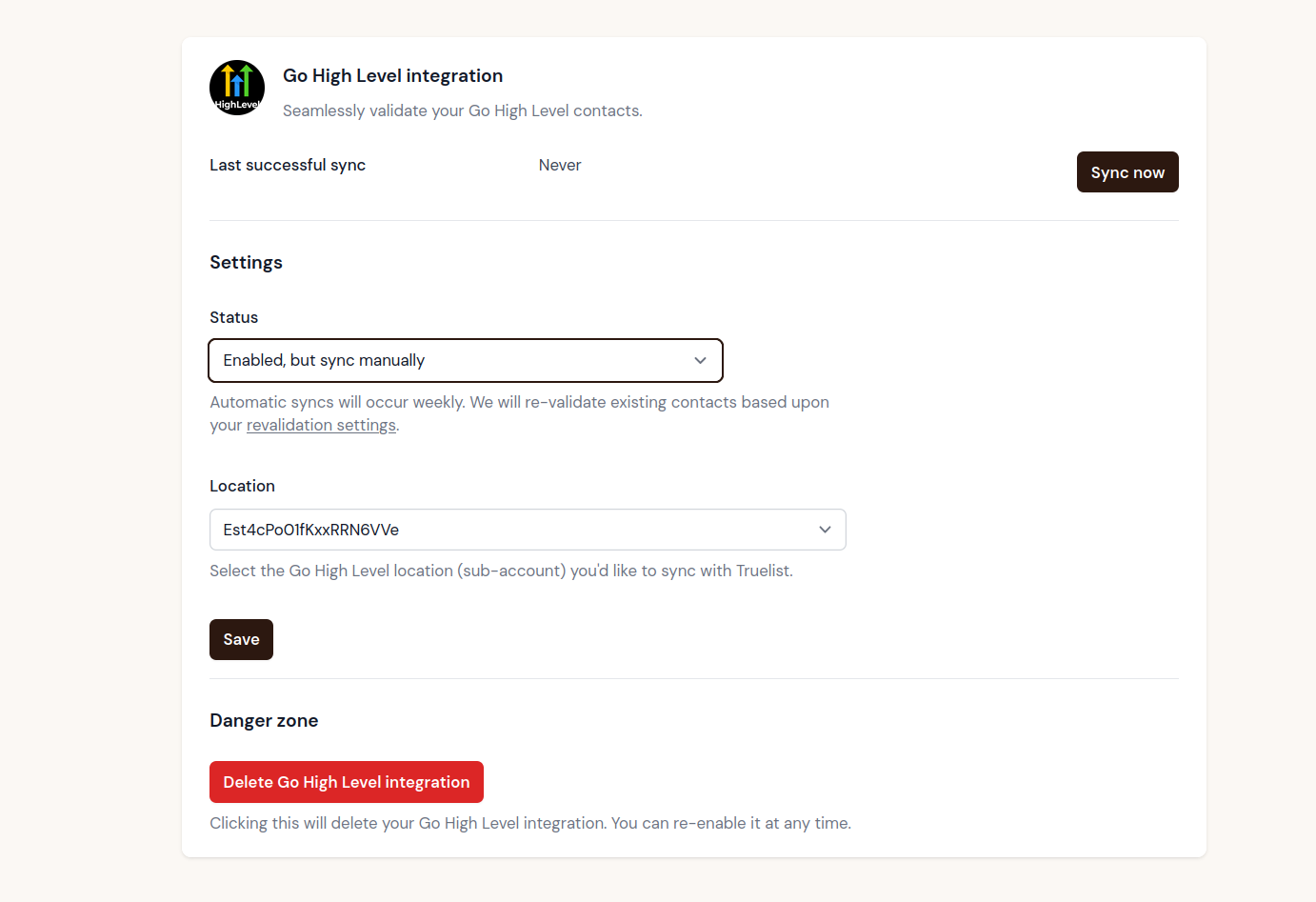
Location
The Location dropdown shows the Go High Level sub-account that is connected. The location is set during the OAuth authorization step. To switch to a different location, delete the integration and set it up again.
Sync settings
Use the Status dropdown to control how syncing works:
- Enabled, sync automatically — Truelist will validate your contact list on a weekly basis without any manual action.
- Enabled, but sync manually — Syncing is enabled but will only run when you click Sync now.
- Disabled — Syncing is paused. No new validations will run until you re-enable it.
Syncing now
Click the Sync now button to immediately kick off a validation of your GHL contacts. Truelist will only validate email addresses that have not been validated recently. Existing results are cached and re-used based on your revalidation settings.
Note: After a sync starts, a new entry will appear in the Verify list section of your Truelist dashboard. The file itself will be empty — this is expected behavior. For the Go High Level integration, validation results are written directly back to your contacts in GHL as tags rather than being stored in a downloadable CSV. The entry exists only to represent the sync run; to review results, check the Tags column in your Go High Level contact list.
Deleting the integration
Click the Delete Go High Level integration button to remove the connection entirely. This stops all syncing. It will not delete any data in Go High Level or Truelist — your existing tags and validation history are preserved. You can reconnect the integration at any time.
Using validation results in Go High Level
Once a sync completes, each contact will have one or more Truelist tags applied in the Tags column of your Go High Level contacts list.

Here are some common ways to put them to use.
Suppress invalid contacts from campaigns
Before sending a campaign, create a filter or smart list that excludes contacts tagged truelist-invalid. This prevents sending to bad addresses that would raise your bounce rate and harm your sender reputation.
Build a clean segment for high-value sends
Create a smart list in GHL with the condition tag is truelist-valid. Use this segment for re-engagement campaigns, product launches, or any send where deliverability is critical.
Quarantine risky addresses
Create a separate smart list for contacts tagged truelist-risky. You can choose to suppress these from regular sends while continuing to email validated addresses, or review them manually before deciding.
Automate actions with GHL workflows
GHL’s workflow builder can trigger actions based on tags. For example:
- When a contact is tagged
truelist-invalid, automatically remove them from active campaigns or move them to a review pipeline. - When a contact is tagged
truelist-valid, enroll them in your primary nurture sequence.
Remove unknowns after repeated syncs
If a contact is still tagged truelist-unknown after two or three sync cycles, consider suppressing or removing them. A persistent unknown result often indicates a problematic address.
Frequently Asked Questions
How often will my Go High Level contacts sync automatically?
When set to automatic, Truelist will sync your contacts once per week.
Will Truelist re-validate contacts it has already checked?
Yes. Truelist re-validates existing contacts according to the revalidation period configured in your validation settings. The default is 60 days.
Can I validate my contact list on demand?
Yes. Click Sync now on the Go High Level integration settings page to trigger an immediate validation run.
Does Truelist validate all contacts or just new ones?
Each sync fetches all contacts from your GHL location. Truelist skips addresses that were validated recently (within your revalidation window) and only runs validation on new or stale addresses, so credits are not wasted on re-checking recent results.
Why is the file in the Verify list section empty after a GHL sync?
This is intentional. For the Go High Level integration, Truelist writes validation results directly back to your contacts in GHL as tags. The empty entry in the Verify list section simply marks that a sync ran — the actual results live in your Go High Level contact records, under the Tags column.
Will the integration change any contact data other than tags?
Truelist only applies the truelist-valid, truelist-risky, truelist-invalid, and truelist-unknown tags. It does not modify any other contact fields, delete contacts, or change subscriptions.
What happens if my Go High Level authorization is revoked?
If Truelist cannot authenticate with Go High Level during a sync, the integration will be automatically disabled and you will receive an email notification. Go to Settings > Integrations > Go High Level and reconnect to restore the integration.
Can I connect multiple GHL locations?
Each Truelist account can connect one GHL location at a time. To switch locations, delete the current integration and set it up again with the new location.
Is the integration available in the GHL App Marketplace?
Yes. You can find and install Truelist directly from the Go High Level App Marketplace inside your GHL account, or connect through the Truelist dashboard. Both paths lead to the same OAuth setup.